


Page 61 - CC 2019 GD Look Inside
P. 61
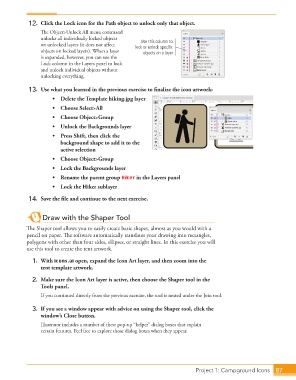
12.  Click the Lock icon for the Path object to unlock only that object.
                      Th  e Object> Unlock All menu command
                      unlocks all individually locked objects
                                                            Use this column to
                      on  unlocked layers (it does not aff ect   lock or unlock specific
                      objects on locked layers). When a layer   objects on a layer.
                      is expanded, however, you can use the
                      Lock column in the Layers panel to lock
                      and unlock individual objects without
                      unlocking everything.

                  13.  Use what you learned in the previous exercise to fi nalize the icon artwork:
                           •    Delete the Template hiking.jpg layer
                           •  Choose Select>All
                           •  Choose Object>Group

                           •    Unlock the Backgrounds layer
                           •     Press Shift, then click the
                              background shape to add it to the
                              active selection
                           •  Choose Object>Group

                           •    Lock the Backgrounds layer
                           •    Rename the parent group Hiker in the Layers panel
                          •    Lock the Hiker sublayer

                  14.  Save the fi le and continue to the next exercise.


                       Draw with the Shaper Tool

                 Th  e  Shaper tool allows you to easily create basic shapes, almost as you would with a
                 pencil on paper. Th  e software automatically translates your drawing into rectangles,
                 polygons with other than four sides, ellipses, or straight lines. In this exercise you will
                 use this tool to create the tent artwork.

                  1. With icons.ai open, expand the Icon Art layer, and then zoom into the
                      tent template artwork.

                  2.  Make sure the Icon Art layer is active, then choose the Shaper tool in the
                      Tools panel.
                      If you continued directly from the previous exercise, the tool is nested under the Join tool.

                  3.  If you see a window appear with advice on using the Shaper tool, click the
                      window’s Close button.
                      Illustrator includes a number of these pop-up “helper” dialog boxes that explain
                      certain features. Feel free to explore those dialog boxes when they appear.


                                                                                   Project 1: Campground Icons  87

