


Page 57 - CC 2019 GD Look Inside
P. 57
Understanding the Free Transform Tool

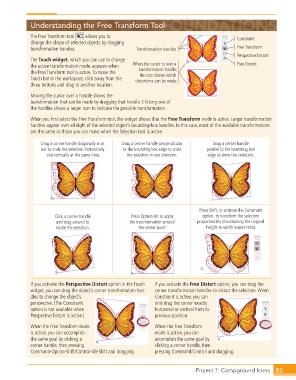
                  The  Free Transform tool     allows you to                                     Constraint
                  change the shape of selected objects by dragging
                  transformation handles.                  Transformation handles                Free Transform
                                                                                                 Perspective Distort
                  The  Touch widget, which you can use to change
                  the active transformation mode, appears when   When the cursor is over a       Free Distort
                  the Free Transform tool is active. To move the   transformation handle,
                                                            the icon shows which
                  Touch bar in the workspace, click away from the   distortions can be made.
                  three buttons and drag to another location.
                  Moving the cursor over a handle shows the
                  transformation that can be made by dragging that handle. Clicking one of
                  the handles shows a larger icon to indicate the possible transformation.

                  When you fi rst select the Free Transform tool, the widget shows that the Free Transform mode is active. Larger transformation
                  handles appear over all eight of the selected object’s bounding-box handles. In this case, most of the available transformations
                  are the same as those you can make when the Selection tool is active.

                      Drag a corner handle diagonally in or   Drag a center handle perpendicular   Drag a center handle
                      out to scale the selection horizontally   to the bounding box edge to scale   parallel to the bounding box
                        and vertically at the same time.  the selection in one direction.  edge to skew the selection.


                                                                                   Press Shift, or activate the Constraint
                           Click a corner handle        Press Option/Alt to apply   option, to transform the selection
                            and drag around to          the transformation around   proportionally (maintaining the original
                            rotate the selection.          the center point.         height-to-width aspect ratio).


                  If you activate the  Perspective Distort option in the Touch   If you activate the  Free Distort option, you can drag the
                  widget, you can drag the object’s corner transformation han-  corner transformation handles to distort the selection. When
                  dles to change the object’s                     Constraint is active, you can
                  perspective. (The Constraint                    only drag the corner exactly
                  option is not available when                    horizontal or vertical from its
                  Perspective Distort is active.)                 previous position.
                  When the Free Transform mode                    When the Free Transform
                  is active, you can accomplish                   mode is active, you can
                  the same goal by clicking a                     accomplish the same goal by
                  corner handle, then pressing                    clicking a corner handle, then
                  Command-Option-Shift/Control-Alt-Shift and dragging.  pressing Command/Control and dragging.


                                                                                   Project 1: Campground Icons  83

