


Page 63 - CC 2019 GD Look Inside
P. 63
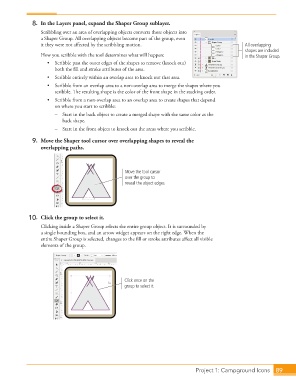
8.  In the Layers panel, expand the Shaper Group  sublayer.
                      Scribbling over an area of overlapping objects converts those objects into
                      a  Shaper Group. All overlapping objects become part of the group, even
                      it they were not aff ected by the scribbling motion.                          All overlapping
                                                                                                    shapes are included
                      How you scribble with the tool determines what will happen:                   in the Shaper Group.
                         •  Scribble past the outer edges of the shapes to remove (knock out)
                           both the fi ll and stroke attributes of the area.
                         •  Scribble entirely within an overlap area to knock out that area.
                         •  Scribble from an overlap area to a non-overlap area to merge the shapes where you
                           scribble. Th  e resulting shape is the color of the front shape in the stacking order.
                         •  Scribble from a non-overlap area to an overlap area to create shapes that depend
                           on where you start to scribble:
                           –  Start in the back object to create a merged shape with the same color as the
                              back shape.
                           –  Start in the front object to knock out the areas where you scribble.

                  9.  Move the Shaper tool cursor over overlapping shapes to reveal the
                      overlapping paths.


                                                      Move the tool cursor
                                                      over the group to
                                                      reveal the object edges.


                  10.  Click the group to select it.

                      Clicking inside a Shaper Group selects the entire group object. It is surrounded by
                      a single bounding box, and an arrow widget appears on the right edge. When the
                      entire Shaper Group is selected, changes to the fi ll or stroke attributes aff ect all visible
                      elements of the group.


                                                      Click once on the
                                                      group to select it.


                                                                                   Project 1: Campground Icons  89

