


Page 65 - CC 2019 GD Look Inside
P. 65
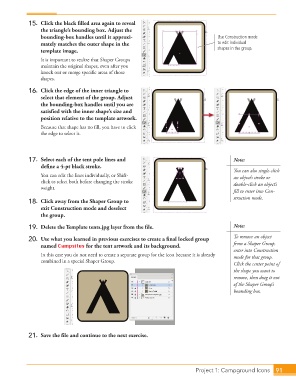
15.  Click the black fi lled area again to reveal
                      the triangle’s bounding box. Adjust the
                      bounding-box handles until it approxi-                              Use Construction mode
                      mately matches the outer shape in the                               to edit individual
                      template image.                                                     shapes in the group.
                      It is important to realize that Shaper Groups
                      maintain the original shapes, even after you
                      knock out or merge specifi c areas of those
                      shapes.

                  16.  Click the edge of the inner triangle to
                      select that element of the group. Adjust
                      the bounding-box handles until you are
                      satisfi ed with the inner shape’s size and
                      position relative to the template artwork.
                      Because that shape has no fi ll, you have to click
                      the edge to select it.


                  17.  Select each of the tent pole lines and                                   Note:
                      defi ne a 4-pt black stroke.
                                                                                                You can also single-click
                      You can edit the lines individually, or Shift-                            an object’s stroke or
                      click to select both before changing the stroke                           double-click an object’s
                      weight.
                                                                                                fi ll to enter into Con-
                                                                                                struction mode.
                  18.  Click away from the Shaper Group to
                      exit Construction mode and deselect
                      the group.

                  19.  Delete the Template tents.jpg layer from the fi le.                      Note:

                  20.  Use what you learned in previous exercises to create a fi nal locked group   To remove an object
                      named Campsites for the tent artwork and its background.                  from a Shaper Group,
                                                                                                enter into Construction
                      In this case you do not need to create a separate group for the icon because it is already   mode for that group.
                      combined in a special Shaper Group.
                                                                                                Click the center point of
                                                                                                the shape you want to
                                                                                                remove, then drag it out
                                                                                                of the Shaper Group’s
                                                                                                bounding box.


                  21.  Save the fi le and continue to the next exercise.


                                                                                   Project 1: Campground Icons  91

