


Page 59 - CC 2019 GD Look Inside
P. 59
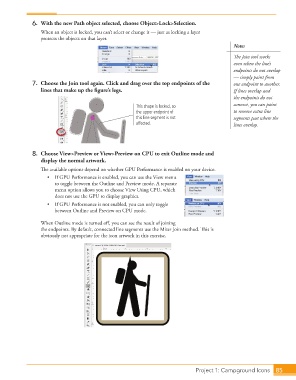
6.  With the new Path object selected, choose Object>Lock>Selection.
                      When an object is locked, you can’t select or change it — just as  locking a layer
                      protects the objects on that layer.
                                                                                                Note:
                                                                                                Th  e  Join tool works
                                                                                                even when the line’s
                                                                                                endpoints do not overlap
                                                                                                — simply paint from
                  7.  Choose the Join tool again. Click and drag over the top endpoints of the   one endpoint to another.
                      lines that make up the fi gure’s legs.                                    If lines overlap and
                                                                                                the endpoints do not
                                                          This shape is locked, so              connect, you can paint
                                                          the upper endpoint of                 to remove extra line
                                                          this line segment is not              segments past where the
                                                          affected.                             lines overlap.


                  8.  Choose View>Preview or View>Preview on CPU to exit Outline mode and
                      display the normal artwork.
                      Th  e available options depend on whether  GPU Performance is enabled on your device.
                         •  If GPU Performance is enabled, you can use the View menu
                           to toggle between the Outline and Preview mode. A separate
                           menu option allows you to choose View Using CPU, which
                           does not use the GPU to display graphics.
                         •  If GPU Performance is not enabled, you can only toggle
                           between Outline and Preview on CPU mode.

                      When Outline mode is turned off , you can see the result of joining
                      the endpoints. By default, connected line segments use the  Miter Join method. Th  is is
                      obviously not appropriate for the icon artwork in this exercise.


                                                                                   Project 1: Campground Icons  85

