


Page 66 - CC 2019 GD Look Inside
P. 66
Draw with the Pencil Tool

              As you might already realize, not all artwork can be created from basic shapes   Note:
              and lines. Illustrator includes everything you need to create artwork in any form,
              including irregular shapes. Th  e  Pencil tool is one method for creating custom shapes.   If you have a digital
              Like a regular pencil on a piece of paper, the Pencil tool creates lines that follow the   drawing tablet, the Pen-
              path of your cursor.                                                           cil tool can be particu-
                                                                                             larly useful for drawing
               1. With icons.ai open, make sure the Icon Art layer is selected in the Layers   custom artwork.
                   panel. Zoom in to the campfi re template artwork.

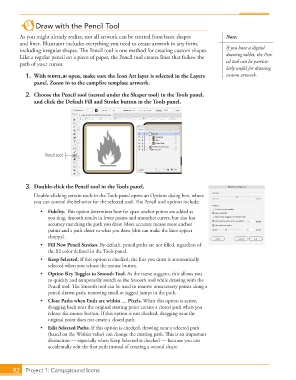
               2.  Choose the Pencil tool (nested under the Shaper tool) in the Tools panel,
                   and click the  Default Fill and Stroke button in the Tools panel.


                        Pencil tool


               3.  Double-click the Pencil tool in the Tools panel.
                   Double-clicking certain tools in the  Tools panel opens an Options dialog box, where
                   you can control the behavior for the selected tool. Th  e Pencil tool options include:
                      •   Fidelity. Th  is option determines how far apart anchor points are added as
                         you drag. Smooth results in fewer points and smoother curves, but also less
                         accuracy matching the path you draw. More accurate means more anchor
                         points and a path closer to what you draw (this can make the lines appear
                         choppy).
                      •   Fill New Pencil Strokes. By default, pencil paths are not fi lled, regardless of
                         the fi ll color defi ned in the Tools panel.
                      •   Keep Selected. If this option is checked, the line you draw is automatically
                         selected when you release the mouse button.
                      •  Option Key Toggles to Smooth Tool. As the name suggests, this allows you
                         to quickly and temporarily switch to the  Smooth tool while drawing with the
                         Pencil tool. Th  e Smooth tool can be used to remove unnecessary points along a
                         pencil-drawn path, removing small or jagged jumps in the path.
                      •  Close Paths when Ends are within __ Pixels. When this option is active,
                         dragging back near the original starting point creates a closed path when you
                         release the mouse button. If this option is not checked, dragging near the
                         original point does not create a closed path.
                      •   Edit Selected Paths. If this option is checked, drawing near a selected path
                         (based on the Within value) can change the existing path. Th  is is an important
                         distinction — especially when Keep Selected is checked — because you can
                         accidentally edit the fi rst path instead of creating a second shape.


           92     Project 1: Campground Icons

