


Page 61 - CC 2019 ID Look Inside
P. 61
More about Working with Fonts (continued)

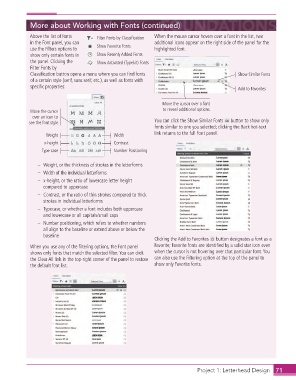
                  Above the list of fonts   Filter Fonts by Classification  When the mouse cursor hovers over a font in the list, two
                  in the Font panel, you can                      additional icons appear on the right side of the panel for the
                  use the Filters options to   Show Favorite Fonts  highlighted font.
                  show only certain fonts in   Show Recenly Added Fonts
                  the panel. Clicking the   Show Activated (Typekit) Fonts
                  Filter Fonts by
                  Classifi cation button opens a menu where you can fi nd fonts                     Show Similar Fonts
                  of a certain style (serif, sans serif, etc.), as well as fonts with
                  specifi c properties:                                                            Add to Favorites


                                                                     Move the cursor over a font
                  Move the cursor                                    to reveal additional options.
                   over an icon to
                 see the font style.                              You can click the Show Similar Fonts   button to show only
                                                                  fonts similar to one you selected; clicking the Back hot-text
                        Weight                    Width           link returns to the full Font panel.
                       x-height                   Contrast
                      Type case                   Number Positioning

                     –   Weight, or the thickness of strokes in the letterforms
                     –   Width of the individual letterforms
                     –   x-height, or the ratio of lowercase letter height
                       compared to uppercase
                     –    Contrast, or the ratio of thin strokes compared to thick
                       strokes in individual letterforms
                     –    Typecase, or whether a font includes both uppercase
                       and lowercase or all capitals/small caps
                     –    Number positioning, which refers to whether numbers
                       all align to the baseline or extend above or below the
                       baseline
                                                                  Clicking the Add to Favorites   button designates a font as a
                  When you use any of the fi ltering options, the Font panel   Favorite; Favorite fonts are identifi ed by a solid star icon even
                  shows only fonts that match the selected fi lter. You can click   when the cursor is not hovering over that particular font. You
                  the Clear All link in the top-right corner of the panel to restore   can also use the Filtering option at the top of the panel to
                  the default font list.                          show only Favorite fonts.


                                                                                    Project 1: Letterhead Design  71

