


Page 59 - CC 2019 ID Look Inside
P. 59
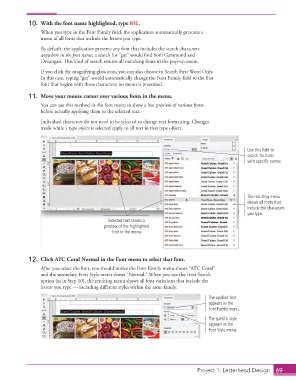
10.  With the font name highlighted, type ATC.
                      When you type in the Font Family field, the application automatically presents a
                      menu of all fonts that include the letters you type.
                      By default, the application presents any font that includes the search characters
                      anywhere in the font name; a search for “gar” would find both Garamond and
                      Devangari. This kind of search returns all matching fonts in the pop-up menu.

                      If you click the magnifying glass icon, you can also choose to Search First Word Only.
                      In this case, typing “gar” would automatically change the Font Family field to the first
                      font that begins with those characters; no menu is presented.

                  11.  Move your mouse cursor over various fonts in the menu.
                      You can use this method in the font menu to show a live preview of various fonts
                      before actually applying them to the selected text.

                      Individual characters do not need to be selected to change text formatting. Changes
                      made while a type object is selected apply to all text in that type object.


                                                                                                     Use this field to
                                                                                                     search for fonts
                                                                                                     with specific names.


                                                                                                     The resulting menu
                                                                                                     shows all fonts that
                                                                                                     include the characters
                                                                                                     you type.
                                                Selected text shows a
                                              preview of the highlighted
                                                 font in the menu.


                  12.  Click ATC Coral Normal in the Font menu to select that font.

                      After you select the font, you should notice the Font Family menu shows “ATC Coral”
                      and the secondary Font Style menu shows “Normal.” When you use the Font Search
                      option (as in Step 10), the resulting menu shows all font variations that include the
                      letters you type — including different styles within the same family.

                                                                                      The applied font
                                                                                      appears in the
                                                                                      Font Family menu.

                                                                                      The specific style
                                                                                      appears in the
                                                                                      Font Style menu.


                                                                                  Project 1: Letterhead Design  69

