


Page 57 - CC 2019 ID Look Inside
P. 57
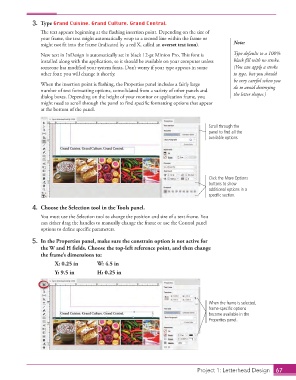
3. Type Grand Cuisine. Grand Culture. Grand Central.
                      Th  e text appears beginning at the fl ashing insertion point. Depending on the size of
                      your frame, the text might automatically wrap to a second line within the frame or
                      might not fi t into the frame (indicated by a red X, called an  overset text icon).  Note:

                      New text in InDesign is automatically set in black 12-pt Minion Pro. Th  is font is   Type defaults to a 100%
                      installed along with the application, so it should be available on your computer unless   black fi ll with no stroke.
                      someone has modifi ed your system fonts. Don’t worry if your type appears in some   (You can apply a stroke
                      other font; you will change it shortly.                                   to type, but you should
                                                                                                be very careful when you
                      When the insertion point is fl ashing, the  Properties panel includes a fairly large   do to avoid destroying
                      number of text formatting options, consolidated from a variety of other panels and
                      dialog boxes. Depending on the height of your monitor or application frame, you   the letter shapes.)
                      might need to scroll through the panel to fi nd specifi c formatting options that appear
                      at the bottom of the panel.


                                                                                      Scroll through the
                                                                                      panel to find all the
                                                                                      available options.


                                                                                      Click the More Options
                                                                                      buttons to show
                                                                                      additional options in a
                                                                                      specific section.

                  4.  Choose the  Selection tool in the Tools panel.
                      You must use the Selection tool to change the position and size of a text frame. You
                      can either drag the handles to manually change the frame or use the Control panel
                      options to defi ne specifi c parameters.

                  5.  In the  Properties panel, make sure the constrain option is not active for
                      the W and H fi elds. Choose the top-left reference point, and then change
                      the frame’s dimensions to:

                           X: 0.25 in       W: 4.5 in
                           Y: 9.5 in        H: 0.25 in


                                                                                      When the frame is selected,
                                                                                      frame-specific options
                                                                                      become available in the
                                                                                      Properties panel.


                                                                                    Project 1: Letterhead Design  67

