


Page 62 - CC 2019 ID Look Inside
P. 62
Working with Adobe Typekit

                 Adobe Typekit is an online library of high-quality fonts. The   menu option also shows the email address (username) that is
               Typekit Portfolio Plan, which provides access to the full font   currently signed in.
               library and allows you to sync up to 100 fonts at a time to
               your desktop, is included in your individual user subscription   If you see your own username, you are already signed in
               to the Adobe Creative Cloud.                    and can use the Typekit functionality. If you see a different
                                                               username, you should choose the Sign Out option, and then
               The Find More option at the top of the Font panel provides   sign in with your own username. If you see the words “Sign
               a link to Adobe Typekit fonts directly from the InDesign   In,” you should choose that menu option and follow the on-
               interface.                                      screen directions to sign in with your own username.
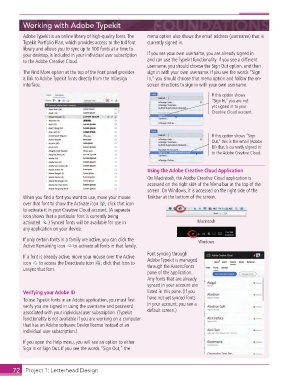
                                                                                       If this option shows
                                                                                       “Sign In,” you are not
                                                                                       yet signed in to your
                                                                                       Creative Cloud account.


                                                                                       If this option shows “Sign
                                                                                       Out,” this is the email (Adobe
                                                                                       ID) that is currently signed in
                                                                                       to the Adobe Creative Cloud.


                                                               Using the Adobe Creative Cloud Application
                                                               On Macintosh, the Adobe Creative Cloud application is
                                                               accessed on the right side of the Menu bar at the top of the
                                                               screen. On Windows, it is accessed on the right side of the
               When you fi nd a font you want to use, move your mouse   Taskbar at the bottom of the screen.
               over that font to show the Activate icon   ; click that icon
               to activate it in your Creative Cloud account. (A separate
               icon shows that a particular font is currently being
               activated   .) Synced fonts will be available for use in           Macintosh
               any application on your device.

               If only certain fonts in a family are active, you can click the    Windows
               Active Remaining icon    to activate all fonts in that family.
                                                               Font syncing through
               If a font is already active, move your mouse over the Active   Adobe Typekit is managed
               icon    to access the Deactivate icon   ; click that icon to   through the Assets:Fonts
               unsync that font.
                                                               pane of the application.
                                                               Any fonts that are already
                                                               synced in your account are
               Verifying your Adobe ID                         listed in this pane. (If you
               To use Typekit fonts in an Adobe application, you must fi rst   have not yet synced fonts
               verify you are signed in using the username and password   in your account, you see a
               associated with your individual user subscription. (Typekit   default screen.)
               functionality is not available if you are working on a computer
               that has an Adobe software Device license instead of an
               individual user subscription.)
               If you open the Help menu, you will see an option to either
               Sign In or Sign Out. If you see the words “Sign Out,” the


           72     Project 1: Letterhead Design

