


Page 58 - CC 2019 ID Look Inside
P. 58
6.  Choose the  Type tool, and click inside the repositioned text frame to place
                   the insertion point.
               7.  Choose Edit> Select All to select all text in the frame.
                   Character formatting such as the font, style, size, and fi ll color apply only to selected
                   characters.
                   In addition to using the Select All command to select all text in a story, you have a
                   number of options for selecting type characters in a frame:               Note:
                      •  Select specifi c characters by clicking with the Type tool and dragging.  When a type frame is se-
                      •  Double-click a word to select the entire word.                      lected with the  Selection
                      •  Triple-click a word to select the entire line containing the word.  tool, you can double-
                                                                                             click inside the frame to
                      •  Quadruple-click a word to select the entire paragraph containing the word.  place the insertion point
                      •  Press Shift-Right Arrow or Shift-Left Arrow to select the character to the   inside that frame. Th  e
                         immediate right or left of the  insertion point, respectively.      Type tool automatically
                      •   Press Shift-Up Arrow or Shift-Down Arrow to select all characters up to the   becomes active.
                         same position as the insertion point in the previous or next line, respectively.
                      •  Press Command/Control-Shift-Right Arrow or Command/Control-Shift-Left
                         Arrow to select the word immediately to the right or left of the insertion point,
                         respectively.
                      •  Press Command/Control-Shift-Up Arrow or Command/Control-Shift-Down
                         Arrow to select the rest of paragraph immediately before or after the insertion
                         point, respectively.

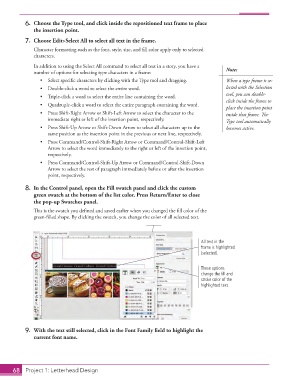
               8.  In the  Control panel, open the Fill swatch panel and click the custom
                   green swatch at the bottom of the list color. Press Return/Enter to close
                   the pop-up Swatches panel.
                   Th  is is the swatch you defi ned and saved earlier when you changed the fi ll color of the
                   green-fi lled shape. By clicking the swatch, you change the color of all selected text.


                                                                                   All text in the
                                                                                   frame is highlighted
                                                                                   (selected).


                                                                                   These options
                                                                                   change the fill and
                                                                                   stroke color of the
                                                                                   highlighted text.


               9.  With the text still selected, click in the Font Family fi eld to highlight the
                   current font name.


           68     Project 1: Letterhead Design

