


Page 55 - CC 2019 ID Look Inside
P. 55
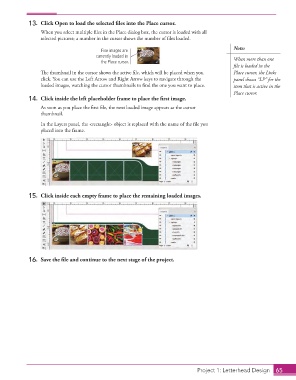
13.  Click Open to load the selected files into the Place cursor.
                      When you select multiple files in the Place dialog box, the cursor is loaded with all
                      selected pictures; a number in the cursor shows the number of files loaded.
                                                                                                Note:
                                             Five images are
                                           currently loaded in                                  When more than one
                                             the Place cursor.
                                                                                                file is loaded in the
                      The thumbnail in the cursor shows the active file, which will be placed when you   Place cursor, the Links
                      click. You can use the Left Arrow and Right Arrow keys to navigate through the   panel shows “LP” for the
                      loaded images, watching the cursor thumbnails to find the one you want to place.  item that is active in the
                                                                                                Place cursor.
                  14.  Click inside the left placeholder frame to place the first image.
                      As soon as you place the first file, the next loaded image appears as the cursor
                      thumbnail.
                      In the Layers panel, the <rectangle> object is replaced with the name of the file you
                      placed into the frame.


                  15.  Click inside each empty frame to place the remaining loaded images.


                  16.  Save the file and continue to the next stage of the project.


                                                                                  Project 1: Letterhead Design  65

