


Page 54 - CC 2019 ID Look Inside
P. 54
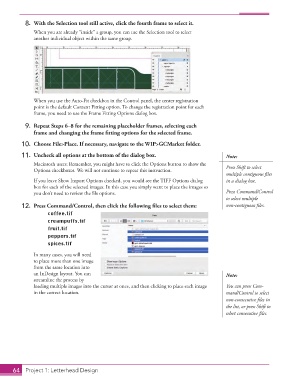
8.  With the Selection tool still active, click the fourth frame to select it.
                   When you are already “inside” a group, you can use the Selection tool to select
                   another individual object within the same group.


                   When you use the Auto-Fit checkbox in the Control panel, the center registration
                   point is the default Content Fitting option. To change the registration point for each
                   frame, you need to use the Frame Fitting Options dialog box.

               9.  Repeat Steps 6–8 for the remaining placeholder frames, selecting each
                   frame and changing the frame fi tting options for the selected frame.

               10.  Choose File>Place. If necessary, navigate to the WIP>GCMarket folder.

               11.  Uncheck all options at the bottom of the dialog box.                     Note:
                   Macintosh users: Remember, you might have to click the Options button to show the   Press Shift to select
                   Options checkboxes. We will not continue to repeat this instruction.
                                                                                             multiple contiguous fi les
                   If you leave Show Import Options checked, you would see the TIFF Options dialog   in a dialog box.
                   box for each of the selected images. In this case you simply want to place the images so
                   you don’t need to review the fi le options.                               Press Command/Control
                                                                                             to select multiple
               12.  Press Command/Control, then click the following fi les to select them:   non-contiguous fi les.
                         coffee.tif
                         creampuffs.tif
                         fruit.tif
                         peppers.tif
                         spices.tif
                   In many cases, you will need
                   to place more than one image
                   from the same location into
                   an InDesign layout. You can                                               Note:
                   streamline the process by
                   loading multiple images into the cursor at once, and then clicking to place each image   You can press Com-
                   in the correct location.                                                  mand/Control to select
                                                                                             non-consecutive fi les in
                                                                                             the list, or press Shift to
                                                                                             select consecutive fi les.


           64     Project 1: Letterhead Design

