


Page 52 - CC 2019 ID Look Inside
P. 52
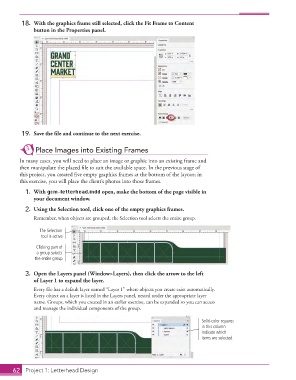
18.  With the graphics frame still selected, click the Fit Frame to Content
                   button in the  Properties panel.


               19.  Save the fi le and continue to the next exercise.


                    Place Images into Existing Frames

              In many cases, you will need to place an image or graphic into an existing frame and
              then manipulate the placed fi le to suit the available space. In the previous stage of
              this project, you created fi ve empty graphics frames at the bottom of the layout; in
              this exercise, you will place the client’s photos into those frames.
               1. With gcm-letterhead.indd open, make the bottom of the page visible in
                   your document window.
               2.  Using the  Selection tool, click one of the empty graphics frames.

                   Remember, when objects are grouped, the Selection tool selects the entire group.

                      The Selection
                      tool is active.

                    Clicking part of
                    a group selects
                    the entire group.


               3.  Open the Layers panel (Window>Layers), then click the arrow to the left
                   of Layer 1 to expand the layer.
                   Every fi le has a default layer named “Layer 1” where objects you create exist automatically.
                   Every object on a layer is listed in the  Layers panel, nested under the appropriate layer
                   name.  Groups, which you created in an earlier exercise, can be expanded so you can access
                   and manage the individual components of the group.

                                                                                    Solid-color squares
                                                                                    in this column
                                                                                    indicate which
                                                                                    items are selected.


           62     Project 1: Letterhead Design

