


Page 50 - CC 2019 ID Look Inside
P. 50
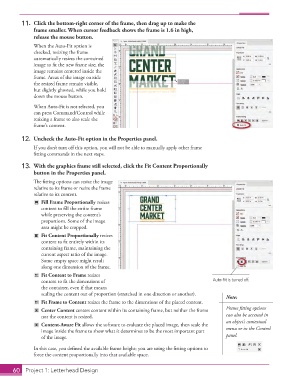
11.  Click the bottom-right corner of the frame, then drag up to make the
                   frame smaller. When  cursor feedback shows the frame is 1.6 in high,
                   release the mouse button.

                   When the   Auto-Fit option is
                   checked, resizing the frame
                   automatically resizes the contained
                   image to fi t the new frame size; the
                   image remains centered inside the
                   frame. Areas of the image outside
                   the resized frame remain visible,
                   but slightly ghosted, while you hold
                   down the mouse button.
                   When  Auto-Fit is not selected, you
                   can press Command/Control while
                   resizing a frame to also scale the
                   frame’s content.


               12.  Uncheck the Auto-Fit option in the  Properties panel.
                   If you don’t turn off  this option, you will not be able to manually apply other frame
                   fi tting commands in the next steps.

               13.  With the graphics frame still selected, click the Fit Content Proportionally
                   button in the  Properties panel.
                   Th  e fi tting options can resize the image
                   relative to its frame or resize the frame
                   relative to its content.
                        Fill Frame Proportionally resizes
                      content to fi ll the entire frame
                      while preserving the content’s
                      proportions. Some of the image
                      area might be cropped.
                        Fit Content Proportionally resizes
                      content to fi t entirely within its
                      containing frame, maintaining the
                      current aspect ratio of the image.
                      Some empty space might result
                      along one dimension of the frame.
                        Fit Content to Frame resizes
                      content to fi t the dimensions of                                 Auto-Fit is turned off.
                      the container, even if that means
                      scaling the content out of proportion (stretched in one direction or another).
                                                                                             Note:
                        Fit Frame to Content resizes the frame to the dimensions of the placed content.
                        Center Content centers content within its containing frame, but neither the frame   Frame fi tting options
                      nor the content is resized.                                            can also be accessed in
                                                                                             an object’s contextual
                       Content-Aware Fit allows the software to evaluate the placed image, then scale the
                      image inside the frame to show what it determines to be the most important part   menu or in the Control
                      of the image.                                                          panel.

                   In this case, you defi ned the available frame height; you are using the fi tting options to
                   force the content proportionally into that available space.


           60     Project 1: Letterhead Design

