


Page 47 - CC 2019 ID Look Inside
P. 47
STAGE 3 / Placing External Images


                 As you saw in the fi rst stage of this project, InDesign incorporates a number of tools for building
                 graphics directly in a layout. Of course, most page-layout projects will include fi les from other
                 sources. Logos created in Adobe Illustrator, raster-based images created in Adobe Photoshop, digital
                 photographs, stock images, and many other types of fi les can be incorporated into a larger project.


                       Place an Adobe Illustrator File
                 Every image in a layout exists in  a frame. You can either create the frame fi rst and   Note:
                 place a fi le into it, or you can simply place an image and create the containing
                 frame at the same time. In this exercise, you are going to place the client’s logo, and   Artwork in an Illustra-
                 transform it to fi t into the margin space at the top of the layout.           tor fi le must be entirely
                                                                                                within the bounds of
                  1. With gcm-letterhead.indd open, make sure nothing is selected.              the artboard (page)
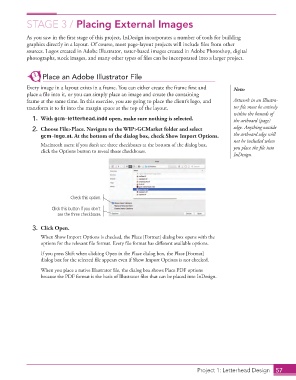
                  2.  Choose File> Place. Navigate to the WIP>GCMarket folder and select        edge. Anything outside
                      gcm-logo.ai. At the bottom of the dialog box, check  Show Import Options.  the artboard edge will
                                                                                                not be included when
                      Macintosh users: if you don’t see three checkboxes at the bottom of the dialog box,   you place the fi le into
                      click the Options button to reveal those checkboxes.
                                                                                                InDesign.


                                 Check this option.
                          Click this button if you don’t
                            see the three checkboxes.

                  3.  Click Open.
                      When  Show Import Options is checked, the Place [Format] dialog box opens with the
                      options for the relevant fi le format. Every fi le format has diff erent available options.
                      If you press Shift when clicking Open in the Place dialog box, the Place [Format]
                      dialog box for the selected fi le appears even if Show Import Options is not checked.
                      When you place a native Illustrator fi le, the dialog box shows  Place PDF options
                      because the  PDF format is the basis of Illustrator fi les that can be placed into InDesign.


                                                                                    Project 1: Letterhead Design  57

