


Page 45 - CC 2019 ID Look Inside
P. 45
More about Working with InDesign Objects

                  Transforming Objects Manually
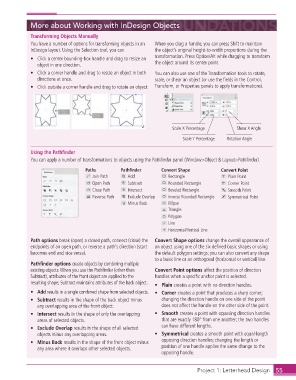
                  You have a number of options for transforming objects in an   When you drag a handle, you can press Shift to maintain
                  InDesign layout. Using the  Selection tool, you can  the object’s original height-to-width proportions during the
                                                                  transformation. Press Option/Alt while dragging to transform
                  •  Click a center bounding-box handle and drag to resize an
                     object in one direction.                     the object around its center point.
                  •  Click a corner handle and drag to resize an object in both   You can also use one of the Transformation tools to rotate,
                     directions at once.                          scale, or shear an object (or use the fi elds in the Control,
                  •  Click outside a corner handle and drag to rotate an object.  Transform, or Properties panels to apply transformations).


                                                                        Scale X Percentage       Shear X Angle

                                                                            Scale Y Percentage  Rotation Angle

                  Using the Pathfi nder
                  You can apply a number of transformations to objects using the  Pathfi nder panel (Window>Object & Layout>Pathfi nder).
                                       Paths         Pathfinder     Convert Shape          Convert Point
                                          Join Path    Add             Rectangle              Plain Point
                                          Open Path    Subtract        Rounded Rectangle      Corner Point
                                          Close Path   Intersect       Beveled Rectangle      Smooth Point
                                          Reverse Path  Exclude Overlap  Inverse Rounded Rectangle  Symmetrical Point
                                                       Minus Back      Ellipse
                                                                       Triangle
                                                                       Polygon
                                                                       Line
                                                                       Horizontal/Vertical Line
                    Path options break (open) a closed path, connect (close) the     Convert Shape options change the overall appearance of
                  endpoints of an open path, or reverse a path’s direction (start   an object using one of the six defi ned basic shapes or using
                  becomes end and vice versa).                    the default polygon settings; you can also convert any shape
                                                                  to a basic line or an orthogonal (horizontal or vertical) line.
                  Pathfi nder options create objects by combining multiple
                  existing objects. When you use the Pathfi nder (other than     Convert Point options affect the position of direction
                  Subtract), attributes of the front object are applied to the   handles when a specifi c anchor point is selected.
                  resulting shape; Subtract maintains attributes of the back object.  •  Plain creates a point with no direction handles.
                  •   Add results in a single combined shape from selected objects.  •   Corner creates a point that produces a sharp corner;
                  •   Subtract results in the shape of the back object minus   changing the direction handle on one side of the point
                     any overlapping area of the front object.      does not affect the handle on the other side of the point.
                  •   Intersect results in the shape of only the overlapping   •   Smooth creates a point with opposing direction handles
                     areas of selected objects.                     that are exactly 180° from one another; the two handles
                  •   Exclude Overlap results in the shape of all selected   can have different lengths.
                     objects minus any overlapping areas.         •   Symmetrical creates a smooth point with equal-length
                  •   Minus Back results in the shape of the front object minus   opposing direction handles; changing the length or
                     any area where it overlaps other selected objects.  position of one handle applies the same change to the
                                                                    opposing handle.


                                                                                    Project 1: Letterhead Design  55

