


Page 46 - CC 2019 ID Look Inside
P. 46
Tips and Tricks for Working with Layout Objects

               Copying and Pasting
               The standard Cut, Copy, and Paste options are available in InDesign, just as they are in most
               applications. Whatever you have selected will be copied or cut to the Clipboard, and whatever is in the
               Clipboard will be pasted. InDesign has a number of special pasting options in the Edit menu:

                 Paste. If you are pasting an object (frame, etc.), the object     Paste Into. This command is
               will be pasted in the center of the document window. If you   available when an object is in the
               are pasting text, it will be pasted at the location of the current  Clipboard and another object is selected. The pasted object
               insertion point; if the insertion point is not currently placed,   becomes the contents of the object that is selected when you
               the text is placed in a new basic text frame in the middle of   choose this command.
               the document window.
                                                                 Paste in Place. This command pastes an object at the exact
                 Paste without Formatting. This command is available   position as the original. If you paste on the same page as the
               when text is in the Clipboard; the text is pasted using the   original, you create a second object exactly on top of the fi rst.
               default type formatting options (12-pt black Minion Pro, if it   You can also use this command to place a copy in the exact
               hasn’t been changed on your system).            position as the original but on a different page in the layout.

               Managing Stacking Order
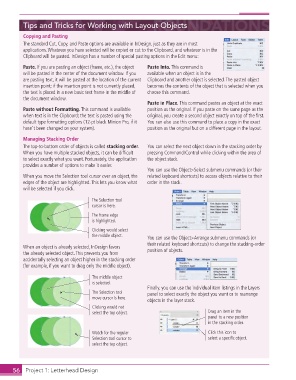
               The top-to-bottom order of objects is called  stacking order.   You can select the next object down in the stacking order by
               When you have multiple stacked objects, it can be diffi cult   pressing Command/Control while clicking within the area of
               to select exactly what you want. Fortunately, the application   the object stack.
               provides a number of options to make it easier.
                                                               You can use the Object> Select submenu commands (or their
               When you move the  Selection tool cursor over an object, the   related keyboard shortcuts) to access objects relative to their
               edges of the object are highlighted. This lets you know what   order in the stack.
               will be selected if you click.
                                          The Selection tool
                                          cursor is here.
                                          The frame edge
                                          is highlighted.

                                          Clicking would select
                                          the middle object.
                                                               You can use the Object> Arrange submenu commands (or
                                                               their related keyboard shortcuts) to change the stacking-order
               When an object is already selected, InDesign favors
               the already selected object. This prevents you from   position of objects.
               accidentally selecting an object higher in the stacking order
               (for example, if you want to drag only the middle object).

                                          The middle object
                                          is selected.
                                                               Finally, you can use the individual item listings in the Layers
                                          The Selection tool   panel to select exactly the object you want or to rearrange
                                          move cursor is here.
                                                               objects in the layer stack.
                                          Clicking would not
                                          select the top object.                      Drag an item in the
                                                                                      panel to a new position
                                                                                      in the stacking order.
                                          Watch for the regular                       Click this icon to
                                          Selection tool cursor to                    select a specific object.
                                          select the top object.


           56     Project 1: Letterhead Design

