


Page 42 - CC 2019 ID Look Inside
P. 42
16.  Using the Selection tool, click away from the selected shapes to deselect all
                   objects.

               17.  Using the Selection tool, click the right empty graphics frame to select it.
                   Because the frames are grouped, clicking once selects the entire group containing the
                   frame you clicked.

               18.  In the Control panel, change the Stroke Weight field to 3 pt.

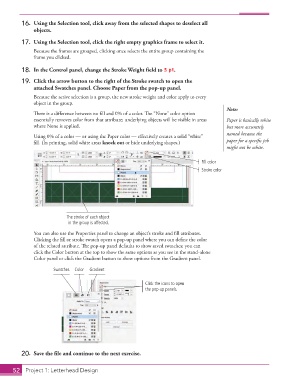
               19.  Click the arrow button to the right of the Stroke swatch to open the
                   attached Swatches panel. Choose Paper from the pop-up panel.
                   Because the active selection is a group, the new stroke weight and color apply to every
                   object in the group.
                                                                                             Note:
                   There is a difference between no fill and 0% of a color. The “None” color option
                   essentially removes color from that attribute; underlying objects will be visible in areas   Paper is basically white
                   where None is applied.                                                    but more accurately
                                                                                             named because the
                   Using 0% of a color — or using the Paper color — effectively creates a solid “white”
                   fill. (In printing, solid white areas knock out or hide underlying shapes.)   paper for a specific job
                                                                                             might not be white.

                                                                                    Fill color
                                                                                    Stroke color


                                The stroke of each object
                                 in the group is affected.
                   You can also use the Properties panel to change an object’s stroke and fill attributes.
                   Clicking the fill or stroke swatch opens a pop-up panel where you can define the color
                   of the related attribute. The pop-up panel defaults to show saved swatches; you can
                   click the Color button at the top to show the same options as you see in the stand-alone
                   Color panel or click the Gradient button to show options from the Gradient panel.

                           Swatches  Color  Gradient

                                                              Click the icons to open
                                                              the pop-up panels.


               20.  Save the file and continue to the next exercise.


           52   Project 1: Letterhead Design

