


Page 41 - CC 2019 ID Look Inside
P. 41
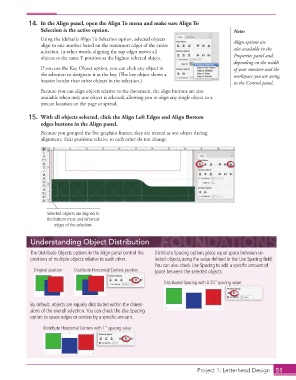
14.  In the Align panel, open the Align To menu and make sure Align To
                      Selection is the active option.                                           Note:
                      Using the (default) Align To Selection option, selected objects           Align options are
                      align to one another based on the outermost edges of the entire
                      selection. In other words, aligning the top edges moves all               also available in the
                      objects to the same Y position as the highest selected object.            Properties panel and,
                                                                                                depending on the width
                      If you use the Key Object option, you can click any object in             of your monitor and the
                      the selection to designate it as the key. (Th  e  key object shows a      workspace you are using,
                      heavier border than other objects in the selection.)                      in the Control panel.
                      Because you can align objects relative to the document, the align buttons are also
                      available when only one object is selected, allowing you to align any single object to a
                      precise location on the page or spread.

                  15.  With all objects selected, click the Align Left Edges and Align Bottom
                      edges buttons in the Align panel.
                      Because you grouped the fi ve graphics frames, they are treated as one object during
                      alignment; their positions relative to each other do not change.


                        Selected objects are aligned to
                        the bottom-most and left-most
                           edges of the selection.


                  Understanding Object Distribution

                  The  Distribute Objects options in the Align panel control the   Distribute Spacing options place equal space between se-
                  positions of multiple objects relative to each other.   lected objects,using the value defi ned in the Use Spacing fi eld.
                                                                  You can also check Use Spacing to add a specifi c amount of
                                   Distribute Horizontal Centers position
                   Original position  Distribute Horizontal Centers position  space between the selected objects.
                                                                     Distributed Spacing with 0.25”
                                                                     Distributed Spacing with 0.25” spacing value spacing value


                  By default, objects are equally distributed within the dimen-
                  sions of the overall selection. You can check the Use Spacing
                  option to space edges or centers by a specifi c amount.

                       Distribute Horizontal Centers with 1” spacing value


                                                                                    Project 1: Letterhead Design  51

