


Page 40 - CC 2019 ID Look Inside
P. 40
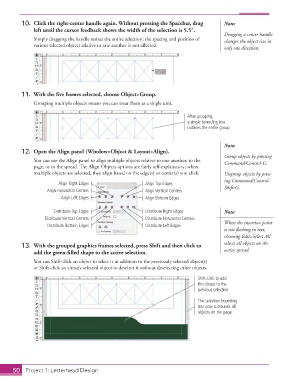
10.  Click the right-center handle again. Without pressing the Spacebar, drag   Note:
                   left until the cursor feedback shows the width of the selection is 5.5″.
                                                                                            Dragging a center handle
                   Simply dragging the handle resizes the entire selection; the spacing and position of   changes the object size in
                   various selected objects relative to one another is not aff ected.
                                                                                            only one direction.


               11.  With the fi ve frames selected, choose Object>Group.
                     Grouping multiple objects means you can treat them as a single unit.

                                                                              After grouping,
                                                                              a single bounding box
                                                                              outlines the entire group.


                                                                                            Note:
               12.  Open the Align panel (Window>Object & Layout>Align).
                                                                                            Group objects by pressing
                   You can use the  Align panel to align multiple objects relative to one another, to the   Command/Control-G.
                   page, or to the spread. Th  e  Align Objects options are fairly self-explanatory; when
                   multiple objects are selected, they align based on the edge(s) or center(s) you click.    Ungroup objects by press-
                                                                                            ing Command/Control-
                             Align Right Edges                Align Top Edges
                        Align Horizontal Centers              Align Vertical Centers        Shift-G.
                              Align Left Edges                Align Bottom Edges

                           Distribute Top Edges               Distribute Right Edges        Note:
                       Distribute Vertical Centers            Distribute Horizontal Centers
                         Distribute Bottom Edges              Distribute Left Edges         When the insertion point
                                                                                            is not fl ashing in text,
                                                                                            choosing Edit> Select All
               13.  With the grouped graphics frames selected, press Shift and then click to   selects all objects on the
                   add the green-fi lled shape to the active selection.                     active spread.
                   You can Shift-click an object to select it in addition to the previously selected object(s)
                   or Shift-click an already selected object to deselect it without deselecting other objects.

                                                                                  Shift-click to add
                                                                                  this shape to the
                                                                                  previous selection.
                                                                                  The selection bounding
                                                                                  box now surrounds all
                                                                                  objects on the page.


           50     Project 1: Letterhead Design

