


Page 43 - CC2018_AI_Look_Inside
P. 43
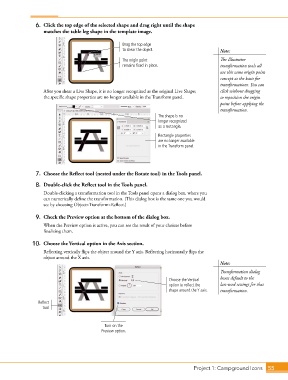
6.  Click the top edge of the selected shape and drag right until the shape
                   matches the table leg shape in the template image.


                                                    Drag the top edge
                                                    to shear the object.                    Note:

                                                    The origin point                        The Illustrator
                                                    remains fixed in place.                 transformation tools all
                                                                                            use this same origin point
                                                                                            concept as the basis for
                                                                                            transformations. You can

                   After you shear a Live Shape, it is no longer recognized as the original Live Shape;   click without dragging
                   the specific shape properties are no longer available in the Transform panel.  to reposition the origin
                                                                                            point before applying the
                                                                                            transformation.
                                                                  The shape is no
                                                                  longer recognized
                                                                  as a rectangle.
                                                                  Rectangle properties
                                                                  are no longer available
                                                                  in the Transform panel.


                7.  Choose the Reflect tool (nested under the Rotate tool) in the Tools panel.

                8.  Double-click the Reflect tool in the Tools panel.
                   Double-clicking a transformation tool in the Tools panel opens a dialog box, where you
                   can numerically define the transformation. (This dialog box is the same one you would
                   see by choosing Object>Transform>Reflect.)

                9.  Check the Preview option at the bottom of the dialog box.
                   When the Preview option is active, you can see the result of your choices before
                   finalizing them.

               10.  Choose the Vertical option in the Axis section.
                   Reflecting vertically flips the object around the Y axis. Reflecting horizontally flips the
                   object around the X axis.
                                                                                            Note:
                                                                                            Transformation dialog
                                                                       Choose the Vertical   boxes default to the
                                                                       option to reflect the   last-used settings for that
                                                                       shape around the Y axis.  transformation.

                 Reflect
                   tool


                                            Turn on the
                                           Preview option.


                                                                                 Project 1: Campground Icons    55

