


Page 45 - CC2018_AI_Look_Inside
P. 45
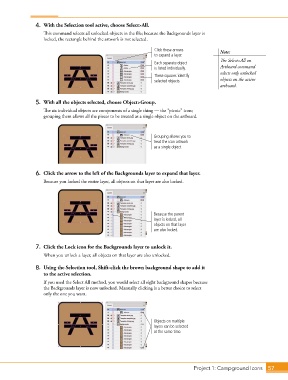
4.  With the Selection tool active, choose Select>All.
                   This command selects all unlocked objects in the file; because the Backgrounds layer is
                   locked, the rectangle behind the artwork is not selected.

                                                                 Click these arrows         Note:
                                                                 to expand a layer.
                                                                                            The Select>All on
                                                                 Each separate object
                                                                 is listed individually.    Artboard command
                                                                                            selects only unlocked
                                                                 These squares identify
                                                                 selected objects.          objects on the active
                                                                                            artboard.


                5.  With all the objects selected, choose Object>Group.
                   The six individual objects are components of a single thing — the “picnic” icon;
                   grouping them allows all the pieces to be treated as a single object on the artboard.


                                                                Grouping allows you to
                                                                treat the icon artwork
                                                                as a single object.


                6.  Click the arrow to the left of the Backgrounds layer to expand that layer.
                   Because you locked the entire layer, all objects on that layer are also locked.


                                                                Because the parent
                                                                layer is locked, all
                                                                objects on that layer
                                                                are also locked.


                7.  Click the Lock icon for the Backgrounds layer to unlock it.
                   When you unlock a layer, all objects on that layer are also unlocked.

                8.  Using the Selection tool, Shift-click the brown background shape to add it
                   to the active selection.
                   If you used the Select All method, you would select all eight background shapes because
                   the Backgrounds layer is now unlocked. Manually clicking is a better choice to select
                   only the one you want.


                                                                Objects on multiple
                                                                layers can be selected
                                                                at the same time.


                                                                                 Project 1: Campground Icons    57

