


Page 40 - CC2018_AI_Look_Inside
P. 40
Stage 2 Drawing with Basic Shapes


          A number of tools and utilities can be used to create complex Illustrator artwork. Creating the icons
          in this project gives you an opportunity to experiment with some of these options. As you complete
          the other projects in this book, you will dig deeper into complex drawing techniques.


               numErIcally transform draWIng objEcts
          Basic shapes such as rectangles can be used as the basis for a wide variety of drawing
          projects. In the next two exercises, you will use basic rectangles to create the picnic
          table artwork.

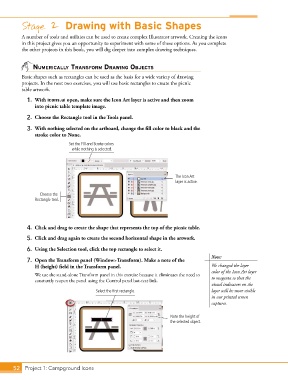
            1.  With icons.ai open, make sure the Icon Art layer is active and then zoom
               into picnic table template image.

            2.  Choose the Rectangle tool in the Tools panel.

            3.  With nothing selected on the artboard, change the fill color to black and the
               stroke color to None.
                             Set the Fill and Stroke colors
                               while nothing is selected.


                                                                         The Icon Art
                                                                         layer is active.

                 Choose the
               Rectangle tool.


            4.  Click and drag to create the shape that represents the top of the picnic table.
            5.  Click and drag again to create the second horizontal shape in the artwork.

            6.  Using the Selection tool, click the top rectangle to select it.
                                                                                        Note:
            7.  Open the Transform panel (Window>Transform). Make a note of the
               H (height) field in the Transform panel.                                 We changed the layer
                                                                                        color of the Icon Art layer
               We use the stand-alone Transform panel in this exercise because it eliminates the need to
               constantly reopen the panel using the Control panel hot-text link.       to magenta so that the
                                                                                        visual indicators on the
                                         Select the first rectangle.                    layer will be more visible
                                                                                        in our printed screen
                                                                                        captures.


                                                                       Note the height of
                                                                       the selected object.


       52 Project 1: Campground Icons

