


Page 48 - CC2018_AI_Look_Inside
P. 48
crEatE artWork WIth lInEs
          The Hiker icon is a perfect candidate for drawing with lines — which makes it ideal
          for introducing the Line Segment tool. In this exercise, you combine simple lines with
          other basic shapes to create the final icon.

            1.  With icons.ai open, make sure the Icon Art layer is active. Make the hiker
               template art prominent in the document window.
            2.  Choose the Line Segment tool in the Tools panel. Using the Control panel,
               set the Fill to None and the Stroke to 1-pt Black.

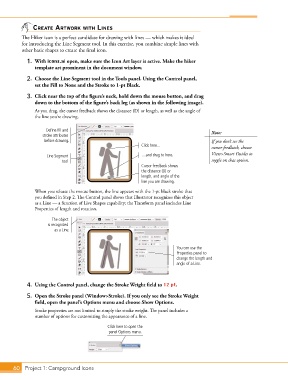
            3.  Click near the top of the figure’s neck, hold down the mouse button, and drag
               down to the bottom of the figure’s back leg (as shown in the following image).
               As you drag, the cursor feedback shows the distance (D) or length, as well as the angle of
               the line you’re drawing.


                    Define fill and                                                     Note:
                   stroke attributes
                   before drawing.                                                      If you don’t see the
                                                           Click here...
                                                                                        cursor feedback, choose
                    Line Segment                           …and drag to here.           View>Smart Guides to
                           tool                                                         toggle on that option.
                                                           Cursor feedback shows
                                                           the distance (D) or
                                                           length, and angle of the
                                                           line you are drawing.
               When you release the mouse button, the line appears with the 1-pt black stroke that
               you defined in Step 2. The Control panel shows that Illustrator recognizes this object
               as a Line — a function of Live Shapes capability; the Transform panel includes Line
               Properties of length and rotation.

                       The object
                     is recognized
                        as a Line.


                                                                          You can use the
                                                                          Properties panel to
                                                                          change the length and
                                                                          angle of a Line.


            4.  Using the Control panel, change the Stroke Weight field to 12 pt.

            5.  Open the Stroke panel (Window>Stroke). If you only see the Stroke Weight
               field, open the panel’s Options menu and choose Show Options.
               Stroke properties are not limited to simply the stroke weight. The panel includes a
               number of options for customizing the appearance of a line.
                                             Click here to open the
                                              panel Options menu.


       60 Project 1: Campground Icons

