


Page 42 - CC2018_AI_Look_Inside
P. 42
shEar and rEflEct draWIng objEcts
          Illustrator includes four transformation options — Rotate, Reflect, Scale, and Shear.
          Each of these transformations can be applied by hand using the related tool in the
          Tools panel; numerically using the fields in the Transform panel; or numerically using
          the appropriate dialog box from the Object>Transform menu. In this exercise, you will
          use these methods to finish the picnic table artwork.

            1.  With icons.ai open, choose the Rectangle tool in the Tools panel.

            2.  Draw a vertical rectangle beginning at the bottom of the artwork and ending
               at the bottom edge of the top horizontal shape (as shown after Step 3).
               Illustrator recognizes certain basic shapes, including rectangles, ellipses, and lines. When
               one of these shapes — called Live Shapes — is selected, the lower half of the Transform
               panel includes properties specific to the type of shape. For a rectangle, you can change
               the height, width, rotation angle, and corner radius for each corner.

            3.  With the Constrain option turned off, change the W field in the Transform
               panel to the same value you used for the horizontal shapes’ height in the
               previous exercise.
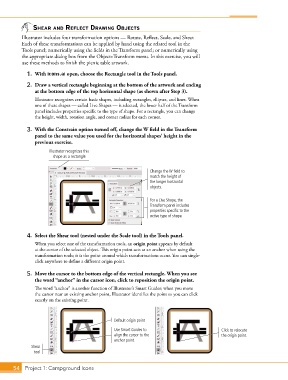
                     Illustrator recognizes this
                       shape as a rectangle.

                                                               Change the W field to
                                                               match the height of
                                                               the longer horizontal
                                                               objects.

                                                               For a Live Shape, the
                                                               Transform panel includes
                                                               properties specific to the
                                                               active type of shape.


            4.  Select the Shear tool (nested under the Scale tool) in the Tools panel.
               When you select one of the transformation tools, an origin point appears by default
               at the center of the selected object. This origin point acts as an anchor when using the
               transformation tools; it is the point around which transformations occur. You can single-
               click anywhere to define a different origin point.


            5.  Move the cursor to the bottom edge of the vertical rectangle. When you see
               the word “anchor” in the cursor icon, click to reposition the origin point.

               The word “anchor” is another function of Illustrator’s Smart Guides; when you move
               the cursor near an existing anchor point, Illustrator identifies the point so you can click
               exactly on the existing point.


                                                Default origin point
                                                Use Smart Guides to                         Click to relocate
                                                align the cursor to the                     the origin point.
                                                anchor point.
              Shear
               tool


       54 Project 1: Campground Icons

