


Page 36 - CC2018_AI_Look_Inside
P. 36
managE multIplE layErs
          When you create artwork in Illustrator, you almost always end up with more than
          one object on the artboard. In many cases, a completed file has dozens or hundreds
          of objects, arranged in specific order on top of one another. As files become more and
          more complex, it can be difficult to find and work with exactly the pieces you need.
          Illustrator layers are one of the most powerful tools available for solving this problem.

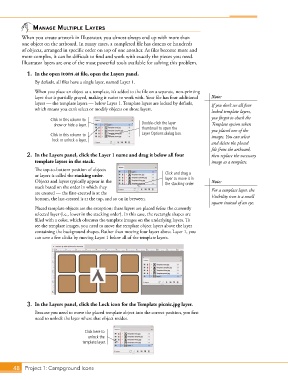
            1.  In the open icons.ai file, open the Layers panel.
               By default, all files have a single layer, named Layer 1.

               When you place an object as a template, it’s added to the file on a separate, non-printing
               layer that is partially grayed, making it easier to work with. Your file has four additional   Note:
               layers — the template layers — below Layer 1. Template layers are locked by default,   If you don’t see all four
               which means you can’t select or modify objects on those layers.
                                                                                        locked template layers,
                      Click in this column to                                           you forgot to check the
                       show or hide a layer.               Double-click the layer       Template option when
                                                           thumbnail to open the        you placed one of the
                      Click in this column to              Layer Options dialog box.    images. You can select
                       lock or unlock a layer.
                                                                                        and delete the placed
                                                                                        file from the artboard,
            2.  In the Layers panel, click the Layer 1 name and drag it below all four   then replace the necessary
               template layers in the stack.                                            image as a template.
               The top-to-bottom position of objects
               or layers is called the stacking order.               Click and drag a
               Objects and layers typically appear in the            layer to move it in   Note:
                                                                     the stacking order.
               stack based on the order in which they
               are created — the first-created is at the                                For a template layer, the
               bottom, the last-created is at the top, and so on in between.            Visibility icon is a small
                                                                                        square instead of an eye.
               Placed template objects are the exception; these layers are placed below the currently
               selected layer (i.e., lower in the stacking order). In this case, the rectangle shapes are
               filled with a color, which obscures the template images on the underlying layers. To
               see the template images, you need to move the template object layers above the layer
               containing the background shapes. Rather than moving four layers above Layer 1, you
               can save a few clicks by moving Layer 1 below all of the template layers.


            3.  In the Layers panel, click the Lock icon for the Template picnic.jpg layer.
               Because you need to move the placed template object into the correct position, you first
               need to unlock the layer where that object resides.


                                    Click here to
                                     unlock the
                                   template layer.


       48 Project 1: Campground Icons

