


Page 33 - CC2018_AI_Look_Inside
P. 33
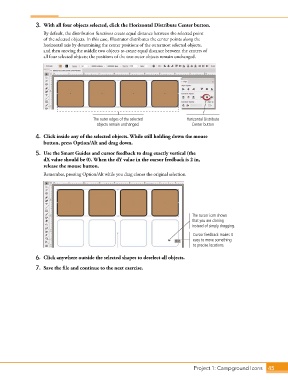
3.  With all four objects selected, click the Horizontal Distribute Center button.
                   By default, the distribution functions create equal distance between the selected point
                   of the selected objects. In this case, Illustrator distributes the center points along the
                   horizontal axis by determining the center positions of the outermost selected objects,
                   and then moving the middle two objects to create equal distance between the centers of
                   all four selected objects; the positions of the two outer objects remain unchanged.


                                        The outer edges of the selected       Horizontal Distribute
                                         objects remain unchanged.              Center button

                4.  Click inside any of the selected objects. While still holding down the mouse
                   button, press Option/Alt and drag down.

                5.  Use the Smart Guides and cursor feedback to drag exactly vertical (the
                   dX value should be 0). When the dY value in the cursor feedback is 2 in,
                   release the mouse button.
                   Remember, pressing Option/Alt while you drag clones the original selection.


                                                                                The cursor icon shows
                                                                                that you are cloning
                                                                                instead of simply dragging.
                                                                                 Cursor feedback makes it
                                                                                 easy to move something
                                                                                 to precise locations.


                6.  Click anywhere outside the selected shapes to deselect all objects.
                7.  Save the file and continue to the next exercise.


                                                                                 Project 1: Campground Icons    45

