


Page 32 - CC2018_AI_Look_Inside
P. 32
alIgn and dIstrIbutE objEcts
          In addition to dragging objects around the artboard, the Illustrator Align panel makes   Note:
          it very easy to align and distribute selected objects relative to one another, to a specific   When multiple objects
          key object in the file, or to the overall artboard. In this exercise, you learn how to use   are selected, you can
          the Align panel to align shapes.                                              access the basic Align
                                                                                        options in the Properties
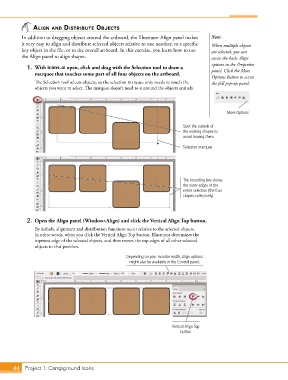
            1.  With icons.ai open, click and drag with the Selection tool to draw a    panel. Click the More
               marquee that touches some part of all four objects on the artboard.
                                                                                        Options button to access
               The Selection tool selects objects, so the selection marquee only needs to touch the   the full pop-up panel.
               objects you want to select. The marquee doesn’t need to surround the objects entirely.


                                                                                               More Options


                                                                             Start the outside of
                                                                             the existing shapes to
                                                                             avoid moving them.

                                                                             Selection marquee


                                                                             The bounding box shows
                                                                             the outer edges of the
                                                                             entire selection (the four
                                                                             shapes collectively).


            2.  Open the Align panel (Window>Align) and click the Vertical Align Top button.
               By default, alignment and distribution functions occur relative to the selected objects.
               In other words, when you click the Vertical Align Top button, Illustrator determines the
               topmost edge of the selected objects, and then moves the top edges of all other selected
               objects to that position.
                                                     Depending on your monitor width, Align options
                                                      might also be available in the Control panel.


                                                                        Vertical Align Top
                                                                           button


       44 Project 1: Campground Icons

