


Page 29 - CC2018_AI_Look_Inside
P. 29
4.  Choose the Selection tool at the top of the Tools panel, then click the left
                   rectangle on the artboard to select it.

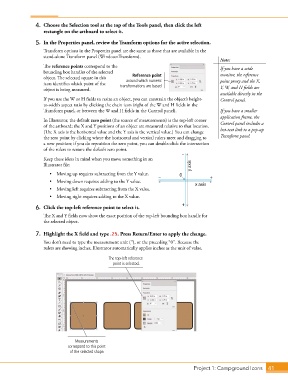
                5.  In the Properties panel, review the Transform options for the active selection.
                   Transform options in the Properties panel are the same as those that are available in the
                   stand-alone Transform panel (Window>Transform).
                                                                                            Note:
                   The reference points correspond to the                                   If you have a wide
                   bounding box handles of the selected                                     monitor, the reference
                   object. The selected square in this   Reference point
                                                     around which numeric
                   icon identifies which point of the   transformations are based           point proxy and the X,
                   object is being measured.                                                Y, W, and H fields are
                                                                                            available directly in the
                   If you use the W or H fields to resize an object, you can constrain the object’s height-  Control panel.
                   to-width aspect ratio by clicking the chain icon (right of the W and H fields in the
                   Transform panel, or between the W and H fields in the Control panel).    If you have a smaller
                                                                                            application frame, the
                   In Illustrator, the default zero point (the source of measurements) is the top-left corner   Control panel includes a
                   of the artboard; the X and Y positions of an object are measured relative to that location.
                   (The X axis is the horizontal value and the Y axis is the vertical value.) You can change   hot-text link to a pop-up
                   the zero point by clicking where the horizontal and vertical rulers meet and dragging to   Transform panel.
                   a new position; if you do reposition the zero point, you can double-click the intersection
                   of the rulers to restore the default zero point.
                                                                            –
                   Keep these ideas in mind when you move something in an
                   Illustrator file:                                            y axis
                      •  Moving up requires subtracting from the Y value.  0
                                                                  –                     +
                      •  Moving down requires adding to the Y value.              x axis
                      •  Moving left requires subtracting from the X value.
                      •  Moving right requires adding to the X value.
                                                                            +
                6.  Click the top-left reference point to select it.
                   The X and Y fields now show the exact position of the top-left bounding box handle for
                   the selected object.

                7.  Highlight the X field and type .25. Press Return/Enter to apply the change.

                   You don’t need to type the measurement unit (3), or the preceding “0”. Because the
                   rulers are showing inches, Illustrator automatically applies inches as the unit of value.

                                              The top-left reference
                                                point is selected.


                                Measurements
                             correspond to this point
                              of the selected shape.


                                                                                 Project 1: Campground Icons    41

