


Page 28 - CC2018_AI_Look_Inside
P. 28
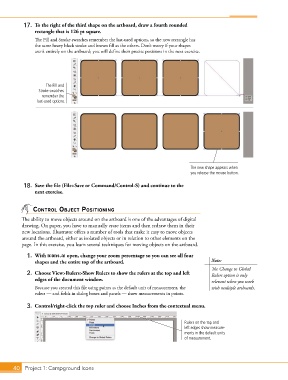
17.  To the right of the third shape on the artboard, draw a fourth rounded
               rectangle that is 126 pt square.

               The Fill and Stroke swatches remember the last-used options, so the new rectangle has
               the same heavy black stroke and brown fill as the others. Don’t worry if your shapes
               aren’t entirely on the artboard; you will define their precise positions in the next exercise.


                    The Fill and
                 Stroke swatches
                  remember the
                last-used options.


                                                                                The new shape appears when
                                                                                you release the mouse button.

           18.  Save the file (File>Save or Command/Control-S) and continue to the
               next exercise.


               control objEct posItIonIng

          The ability to move objects around on the artboard is one of the advantages of digital
          drawing. On paper, you have to manually erase items and then redraw them in their
          new locations. Illustrator offers a number of tools that make it easy to move objects
          around the artboard, either as isolated objects or in relation to other elements on the
          page. In this exercise, you learn several techniques for moving objects on the artboard.

            1.  With icons.ai open, change your zoom percentage so you can see all four
               shapes and the entire top of the artboard.                               Note:
                                                                                        The Change to Global
            2.  Choose View>Rulers>Show Rulers to show the rulers at the top and left   Rulers option is only
               edges of the document window.                                            relevant when you work
               Because you created this file using points as the default unit of measurement, the    with multiple artboards.
               rulers — and fields in dialog boxes and panels — show measurements in points.

            3.  Control/right-click the top ruler and choose Inches from the contextual menu.


                                                                             Rulers on the top and
                                                                             left edges show measure-
                                                                             ments in the default units
                                                                             of measurement.


       40 Project 1: Campground Icons

