


Page 31 - CS6_DW_Look_Inside
P. 31
CoPY And PAste links
              Rather than manually creating the same links on every page, you can now simply copy
              and paste them from one page to another.

                1.  With index.html open (from the Kinetic site), click in any of the text links
                   to place the insertion point.

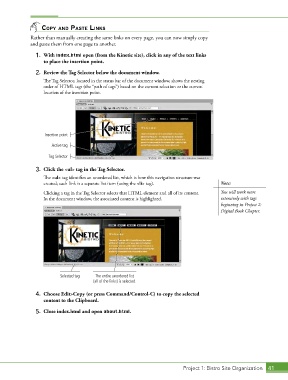
                2.  Review the Tag Selector below the document window.
                   The Tag Selector, located in the status bar of the document window, shows the nesting
                   order of HTML tags (the “path of tags”) based on the current selection or the current
                   location of the insertion point.


                   Insertion point

                      Active tag

                     Tag Selector

                3.  Click the <ul> tag in the Tag Selector.
                   The <ul> tag identifies an unordered list, which is how this navigation structure was
                   created; each link is a separate list item (using the <li> tag).         Note:

                   Clicking a tag in the Tag Selector selects that HTML element and all of its content.    You will work more
                   In the document window, the associated content is highlighted.           extensively with tags
                                                                                            beginning in Project 2:
                                                                                            Digital Book Chapter.


                          Selected tag  The entire unordered list
                                       (all of the links) is selected.

                4.  Choose Edit>Copy (or press Command/Control-C) to copy the selected
                   content to the Clipboard.

                5.  Close index.html and open about.html.


                                                                             Project 1: Bistro Site Organization  41

