


Page 35 - CS6_DW_Look_Inside
P. 35
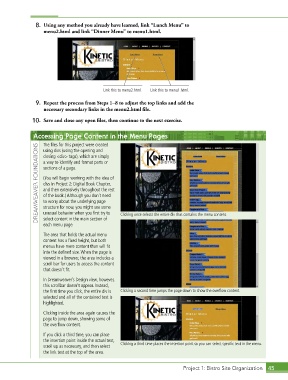
8.  Using any method you already have learned, link “Lunch Menu” to
                   menu2.html and link “Dinner Menu” to menu1.html.


                                            Link this to menu2.html.  Link this to menu1.html.


                9.  Repeat the process from Steps 1–8 to adjust the top links and add the
                   necessary secondary links in the menu2.html file.

               10.  Save and close any open files, then continue to the next exercise.


               Accessing Page Content in the Menu Pages
                   The files for this project were created
                 DREAMWEAVER FOUNDATIONS  a way to identify and format parts or
                   using divs (using the opening and
                   closing <div> tags), which are simply
                   sections of a page.

                   (You will begin working with the idea of
                   divs in Project 2: Digital Book Chapter,
                   and then extensively throughout the rest
                   of the book.) Although you don’t need
                   to worry about the underlying page
                   structure for now, you might see some
                   unusual behavior when you first try to
                   select content in the main section of
                   each menu page.                 Clicking once selects the entire div that contains the menu content.

                   The area that holds the actual menu
                   content has a fixed height, but both
                   menus have more content than will fit
                   into the defined size. When the page is
                   viewed in a browser, the area includes a
                   scroll bar for users to access the content
                   that doesn’t fit.
                   In Dreamweaver’s Design view, however,
                   this scrollbar doesn’t appear. Instead,
                   the first time you click, the entire div is   Clicking a second time jumps the page down to show the overflow content.
                   selected and all of the contained text is
                   highlighted.

                   Clicking inside the area again causes the
                   page to jump down, showing some of
                   the overflow content.
                   If you click a third time, you can place
                   the insertion point inside the actual text,
                   scroll up as necessary, and then select   Clicking a third time places the insertion point so you can select specific text in the menu.
                   the link text at the top of the area.


                                                                             Project 1: Bistro Site Organization  45

