


Page 36 - CS6_DW_Look_Inside
P. 36
CreAte An emAil link
          Most Web sites include one or more external links (including email links), which
          require the appropriate protocol to tell the browser what type of link is present.
              An email link requires the “mailto:” protocol, followed by the appropriate email
          address. This instructs the browser to open a new mail message with the defined
          address already in the To line.

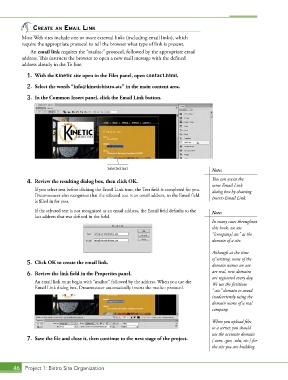
            1.  With the Kinetic site open in the Files panel, open contact.html.

            2.  Select the words “[email protected]” in the main content area.
            3.  In the Common Insert panel, click the Email Link button.


                                             Selected text                              Note:

            4.  Review the resulting dialog box, then click OK.                         You can access the
                                                                                        same Email Link
               If you select text before clicking the Email Link icon, the Text field is completed for you.   dialog box by choosing
               Dreamweaver also recognizes that the selected text is an email address, so the Email field   Insert>Email Link.
               is filled in for you.

               If the selected text is not recognized as an email address, the Email field defaults to the   Note:
               last address that was defined in the field.
                                                                                        In many cases throughout
                                                                                        this book, we use
                                                                                        “[company].atc” as the
                                                                                        domain of a site.

                                                                                        Although at the time
                                                                                        of writing, none of the
            5.  Click OK to create the email link.                                      domain names we use

            6.  Review the link field in the Properties panel.                          are real, new domains
                                                                                        are registered every day.
               An email link must begin with “mailto:” followed by the address. When you use the   We use the fictitious
               Email Link dialog box, Dreamweaver automatically inserts the mailto: protocol.
                                                                                        “.atc” domain to avoid
                                                                                        inadvertently using the
                                                                                        domain name of a real
                                                                                        company.

                                                                                        When you upload files
                                                                                        to a server, you should
                                                                                        use the accurate domain
            7.  Save the file and close it, then continue to the next stage of the project.  (.com, .gov, .edu, etc.) for
                                                                                        the site you are building.


       46 Project 1: Bistro Site Organization

