


Page 29 - CS6_DW_Look_Inside
P. 29
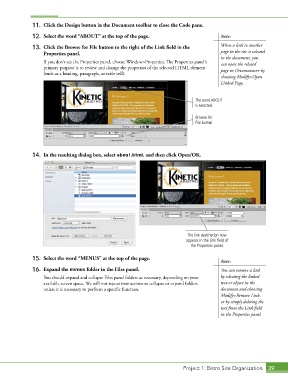
11.  Click the Design button in the Document toolbar to close the Code pane.
               12.  Select the word “ABOUT” at the top of the page.                         Note:

               13.  Click the Browse for File button to the right of the Link field in the   When a link to another
                   Properties panel.                                                        page in the site is selected
                                                                                            in the document, you
                   If you don’t see the Properties panel, choose Window>Properties. The Properties panel’s   can open the related
                   primary purpose is to review and change the properties of the selected HTML element   page in Dreamweaver by
                   (such as a heading, paragraph, or table cell).
                                                                                            choosing Modify>Open
                                                                                            Linked Page.


                                                                                  The word ABOUT
                                                                                  is selected.


                                                                                  Browse for
                                                                                  File button


               14.  In the resulting dialog box, select about.html, and then click Open/OK.


                                                                              The link destination now
                                                                              appears in the Link field of
                                                                                the Properties panel.

               15.  Select the word “MENUS” at the top of the page.
                                                                                            Note:
               16.  Expand the menus folder in the Files panel.                             You can remove a link

                   You should expand and collapse Files panel folders as necessary, depending on your   by selecting the linked
                   available screen space. We will not repeat instructions to collapse or expand folders   text or object in the
                   unless it is necessary to perform a specific function.                   document and choosing
                                                                                            Modify>Remove Link,
                                                                                            or by simply deleting the
                                                                                            text from the Link field
                                                                                            in the Properties panel.


                                                                             Project 1: Bistro Site Organization  39

