


Page 26 - CS6_DW_Look_Inside
P. 26
The Common Insert Panel in Depth
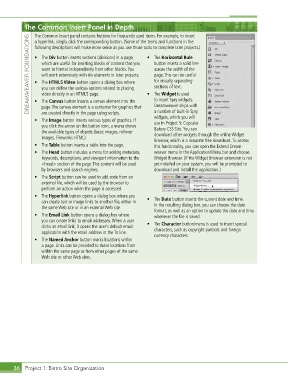
               The Common Insert panel contains buttons for frequently used items. For example, to insert
             DREAMWEAVER FOUNDATIONS  •  The Div button inserts sections (divisions) in a page,   •  The Horizontal Rule
               a hyperlink, simply click the corresponding button. (Some of the terms and functions in the
               following descriptions will make more sense as you use those tools to complete later projects.)


                  which are useful for inserting blocks of content that you
                                                                 button inserts a solid line
                  want to format independently from other blocks. You
                                                                 across the width of the
                  will work extensively with div elements in later projects.
                                                                 page. This can be useful
                                                                 for visually separating
               •  The HTML5 Video button opens a dialog box where
                                                                 sections of text.
                  you can define the various options related to placing
                  video directly in an HTML5 page.
                                                              •  The Widget is used
                                                                 to insert Spry widgets.
               •  The Canvas button inserts a canvas element into the
                                                                 Dream weaver ships with
                  page. The canvas element is a container for graphics that
                                                                 a number of built-in Spry
                  are created directly in the page using scripts.
                                                                 widgets, which you will
               •  The Image button inserts various types of graphics. If   use in Project 5: Cupcake
                  you click the arrow on the button icon, a menu shows   Bakery CSS Site. You can
                  the available types of objects (basic images, rollover   download other widgets through the online Widget
                  images, Fireworks HTML).
                                                                 Browser, which is a separate free download. To access
               •  The Table button inserts a table into the page.  this functionality, you can open the Extend Dream-
               •  The Head button includes a menu for adding metadata,   weaver menu in the Application/Menu bar and choose
                  keywords, descriptions, and viewport information to the   Widget Browser. (If the Widget Browser extension is not
                  <head> section of the page. This content will be used   yet installed on your system, you will be prompted to
                  by browsers and search engines.                download and install the application.)
               •  The Script button can be used to add code from an
                  external file, which will be used by the browser to
                  perform an action when the page is accessed.
               •  The Hyperlink button opens a dialog box where you   •  The Date button inserts the current date and time.
                  can create text or image links to another file, either in   In the resulting dialog box, you can choose the date
                  the same Web site or in an external Web site.
                                                                 format, as well as an option to update the date and time
               •  The Email Link button opens a dialog box where   whenever the file is saved.
                  you can create links to email addresses. When a user   •  The Character button/menu is used to insert special
                  clicks an email link, it opens the user’s default email   characters, such as copyright symbols and foreign
                  application with the email address in the To line.
                                                                 currency characters.
               •  The Named Anchor button marks locations within
                  a page. Links can be provided to these locations from
                  within the same page or from other pages of the same
                  Web site or other Web sites.


       36 Project 1: Bistro Site Organization

