


Page 21 - CS6_DW_Look_Inside
P. 21
sort And move imAge files

              When you define a site in Dreamweaver, the application reads all of the pages in the
              site (a process that can take a few minutes in a large site), notes the links between
              pages, and identifies which images are used in which pages. These associations between
              files are stored in a cache that Dreamweaver creates when a new site is defined.
                 When files are moved or renamed within the site, Dreamweaver recognizes that
              other files are related to the moved or renamed files, and prompts you to update the
              links in all of the affected files.

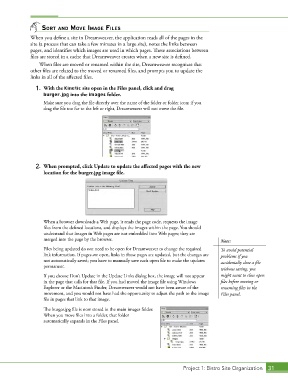
                1.  With the Kinetic site open in the Files panel, click and drag
                   burger.jpg into the images folder.
                   Make sure you drag the file directly over the name of the folder or folder icon; if you
                   drag the file too far to the left or right, Dreamweaver will not move the file.


                2.  When prompted, click Update to update the affected pages with the new
                   location for the burger.jpg image file.


                   When a browser downloads a Web page, it reads the page code, requests the image
                   files from the defined locations, and displays the images within the page. You should
                   understand that images in Web pages are not embedded into Web pages; they are
                   merged into the page by the browser.                                     Note:
                   Files being updated do not need to be open for Dreamweaver to change the required   To avoid potential
                   link information. If pages are open, links in those pages are updated, but the changes are   problems if you
                   not automatically saved; you have to manually save each open file to make the updates   accidentally close a file
                   permanent.
                                                                                            without saving, you
                   If you choose Don’t Update in the Update Links dialog box, the image will not appear   might want to close open
                   in the page that calls for that file. If you had moved the image file using Windows   files before moving or
                   Explorer or the Macintosh Finder, Dreamweaver would not have been aware of the   renaming files in the
                   movement, and you would not have had the opportunity to adjust the path to the image   Files panel.
                   file in pages that link to that image.

                   The burger.jpg file is now stored in the main images folder.
                   When you move files into a folder, that folder
                   automatically expands in the Files panel.


                                                                             Project 1: Bistro Site Organization  31

