


Page 23 - CS6_DW_Look_Inside
P. 23
9.  Collapse the menus folder.
               10.  Select and move the file tables.psd into the resources folder.
                                                                                            Note:
                   In this case, you are not asked to update links. This is a layered Photoshop file that was
                   used to create the background image behind the page content. It is not part of the actual   You can also copy and
                   Web site, but it’s a good idea to keep this type of file in the site folder in case you need   paste files into a folder
                   to make changes later. Later in this project, you will learn how to prevent this file from   using the Edit options
                   being uploaded as part of the site.                                      in the contextual menus,
                                                                                            or using the standard
                                                                                            keyboard shortcuts:
                                                                                            Cut:
                                                                                            Command/Control-X

                                                                                            Copy:
                                                                                            Command/Control-C

                                                                                            Paste:
                                                                                            Command/Control-V
               11.  Collapse the resources folder.
                   From the folder structure alone, the Web site appears to be better organized. You now
                   know what to expect when you open each folder.

               12.  Continue to the next stage of the project.


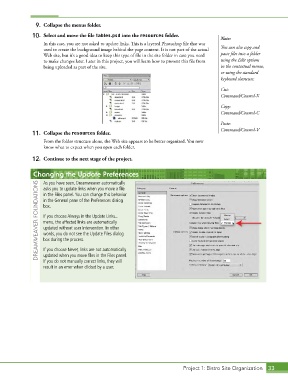
               Changing the Update Preferences
                   As you have seen, Dreamweaver automatically
                 DREAMWEAVER FOUNDATIONS  in the General pane of the Preferences dialog
                   asks you to update links when you move a file
                   in the Files panel. You can change this behavior

                   box.

                   If you choose Always in the Update Links...
                   menu, the affected links are automatically
                   updated without user intervention. In other
                   words, you do not see the Update Files dialog
                   box during the process.

                   If you choose Never, links are not automatically
                   updated when you move files in the Files panel.
                   If you do not manually correct links, they will
                   result in an error when clicked by a user.


                                                                             Project 1: Bistro Site Organization  33

