


Page 40 - CC2018_WD_Look_Inside
P. 40
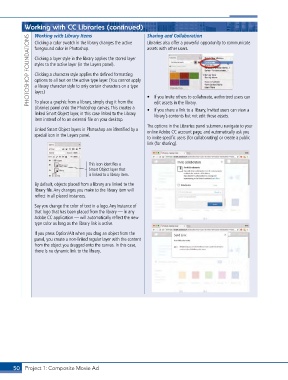
Working with CC Libraries (continued)              Sharing and Collaboration
               Working with Library Items
             PHOTOSHOP FOUNDATIONS  Clicking a layer style in the library applies the stored layer
                                                              Libraries also offer a powerful opportunity to communicate
               Clicking a color swatch in the library changes the active
                                                              assets with other users.
               foreground color in Photoshop.

               styles to the active layer (in the Layers panel).
               Clicking a character style applies the defined formatting
               options to all text on the active type layer. (You cannot apply
               a library character style to only certain characters on a type
               layer.)

               To place a graphic from a library, simply drag it from the
                                                                 edit assets in the library.
               Libraries panel onto the Photoshop canvas. This creates a   •  If you invite others to collaborate, authorized users can
                                                              •  If you share a link to a library, invited users can view a
               linked Smart Object layer, in this case linked to the Library   library’s contents but not edit those assets.
               item instead of to an external file on your desktop.
                                                              The options in the Libraries panel submenu navigate to your
               Linked Smart Object layers in Photoshop are identified by a   online Adobe CC account page, and automatically ask you
               special icon in the Layers panel.
                                                              to invite specific users (for collaborating) or create a public
                                                              link (for sharing).


                                      This icon identifies a
                                      Smart Object layer that
                                      is linked to a library item.

               By default, objects placed from a library are linked to the
               library file. Any changes you make to the library item will
               reflect in all placed instances.
               Say you change the color of text in a logo. Any instance of
               that logo that has been placed from the library — in any
               Adobe CC application — will automatically reflect the new
               type color as long as the library link is active.
               If you press Option/Alt when you drag an object from the
               panel, you create a non-linked regular layer with the content
               from the object you dragged onto the canvas. In this case,
               there is no dynamic link to the library.


       50 Project 1: Composite Movie Ad

