


Page 42 - CC2018_WD_Look_Inside
P. 42
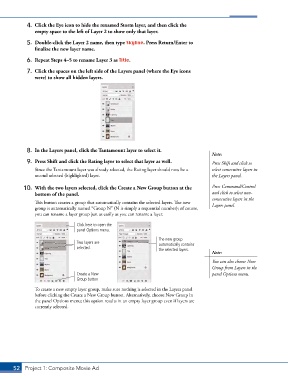
4.  Click the Eye icon to hide the renamed Storm layer, and then click the
               empty space to the left of Layer 2 to show only that layer.

            5.  Double-click the Layer 2 name, then type Skyline. Press Return/Enter to
               finalize the new layer name.

            6.  Repeat Steps 4–5 to rename Layer 3 as Title.

            7.  Click the spaces on the left side of the Layers panel (where the Eye icons
               were) to show all hidden layers.


            8.  In the Layers panel, click the Tantamount layer to select it.
                                                                                        Note:
            9.  Press Shift and click the Rating layer to select that layer as well.    Press Shift and click to
               Since the Tantamount layer was already selected, the Rating layer should now be a   select consecutive layers in
               second selected (highlighted) layer.                                     the Layers panel.


           10.  With the two layers selected, click the Create a New Group button at the   Press Command/Control
               bottom of the panel.                                                     and click to select non-
                                                                                        consecutive layers in the
               This button creates a group that automatically contains the selected layers. The new   Layers panel.
               group is automatically named “Group N” (N is simply a sequential number); of course,
               you can rename a layer group just as easily as you can rename a layer.

                                 Click here to open the
                                 panel Options menu.

                                                                   The new group
                                 Two layers are                    automatically contains
                                 selected.                         the selected layers.
                                                                                        Note:
                                                                                        You can also choose New
                                                                                        Group from Layers in the
                                 Create a New                                           panel Options menu.
                                 Group button

               To create a new empty layer group, make sure nothing is selected in the Layers panel
               before clicking the Create a New Group button. Alternatively, choose New Group in
               the panel Options menu; this option results in an empty layer group even if layers are
               currently selected.


       52 Project 1: Composite Movie Ad

