


Page 39 - CC2018_WD_Look_Inside
P. 39
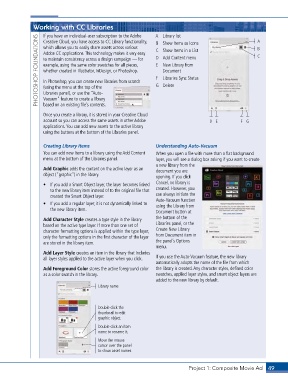
Working with CC Libraries                         A  Library list                           A
                   If you have an individual-user subscription to the Adobe
                 PHOTOSHOP FOUNDATIONS  Adobe CC applications. This technology makes it very easy   C  Show Items in a List  C
                   Creative Cloud, you have access to CC Library functionality,
                                                                 B  Show Items as Icons
                   which allows you to easily share assets across various
                                                                                                           B
                                                                 D  Add Content menu
                   to maintain consistency across a design campaign — for
                                                                 E  New Library from
                   example, using the same color swatches for all pieces,
                   whether created in Illustrator, InDesign, or Photoshop.
                                                                    Document
                                                                 F  Libraries Sync Status
                   In Photoshop, you can create new libraries from scratch
                                                                 G  Delete
                   (using the menu at the top of the
                   Libraries panel), or use the “Auto-
                   Vacuum” feature to create a library
                   based on an existing file’s contents.

                   Once you create a library, it is stored in your Creative Cloud
                   account so you can access the same assets in other Adobe             D E         F G
                   applications. You can add new assets to the active library
                   using the buttons at the bottom of the Libraries panel.


                   Creating Library Items                        Understanding Auto-Vacuum
                   You can add new items to a library using the Add Content   When you open a file with more than a flat background
                   menu at the bottom of the Libraries panel.    layer, you will see a dialog box asking if you want to create
                                                                 a new library from the
                   Add Graphic adds the content on the active layer as an   document you are
                   object (“graphic”) in the library.            opening. If you click

                   •  If you add a Smart Object layer, the layer becomes linked   Cancel, no library is
                      to the new library item instead of to the original file that   created. However, you
                      created the Smart Object layer.            can always initiate the
                                                                 Auto-Vacuum function
                   •  If you add a regular layer, it is not dynamically linked to   using the Library from
                      the new library item.
                                                                 Document button at
                   Add Character Style creates a type style in the library   the bottom of the
                   based on the active type layer. If more than one set of   Libraries panel, or the
                   character formatting options is applied within the type layer,   Create New Library
                   only the formatting options in the first character of the layer   from Document item in
                   are stored in the library item.               the panel’s Options
                                                                 menu.
                   Add Layer Style creates an item in the library that includes
                   all layer styles applied to the active layer when you click.  If you use the Auto-Vacuum feature, the new library
                                                                 automatically adopts the name of the file from which
                   Add Foreground Color stores the active foreground color   the library is created. Any character styles, defined color
                   as a color swatch in the library.             swatches, applied layer styles, and smart object layers are
                                                                 added to the new library by default.
                                          Library name


                                          Double-click the
                                          thumbnail to edit
                                          graphic object.
                                          Double-click an item
                                          name to rename it.
                                          Move the mouse
                                          cursor over the panel
                                          to show asset names.


                                                                               Project 1: Composite Movie Ad    49

