


Page 36 - CC2018_WD_Look_Inside
P. 36
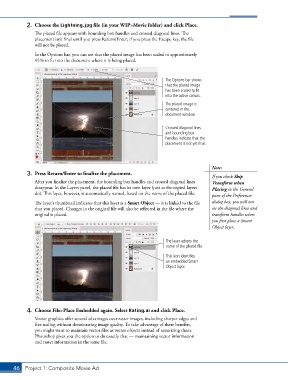
2.  Choose the Lightning.jpg file (in your WIP>Movie folder) and click Place.
               The placed file appears with bounding box handles and crossed diagonal lines. The
               placement isn’t final until you press Return/Enter; if you press the Escape key, the file
               will not be placed.
               In the Options bar, you can see that the placed image has been scaled to approximately
               45% to fit into the document where it is being placed.


                                                                     The Options bar shows
                                                                     that the placed image
                                                                     has been scaled to fit
                                                                     into the active canvas.
                                                                     The placed image is
                                                                     centered in the
                                                                     document window.

                                                                     Crossed diagonal lines
                                                                     and bounding box
                                                                     handles indicate that the
                                                                     placement is not yet final.


                                                                                        Note:
            3.  Press Return/Enter to finalize the placement.
                                                                                        If you check Skip
               After you finalize the placement, the bounding box handles and crossed diagonal lines   Transform when
               disappear. In the Layers panel, the placed file has its own layer (just as the copied layers   Placing in the General
               do). This layer, however, is automatically named, based on the name of the placed file.
                                                                                        pane of the Preferences
               The layer’s thumbnail indicates that this layer is a Smart Object — it is linked to the file   dialog box, you will not
               that you placed. Changes in the original file will also be reflected in the file where the   see the diagonal lines and
               original is placed.                                                      transform handles when
                                                                                        you first place a Smart
                                                                                        Object layer.

                                                                     The layer adopts the
                                                                     name of the placed file.
                                                                     This icon identifies
                                                                     an embedded Smart
                                                                     Object layer.


            4.  Choose File>Place Embedded again. Select Rating.ai and click Place.
               Vector graphics offer several advantages over raster images, including sharper edges and
               free scaling without deteriorating image quality. To take advantage of these benefits,
               you might want to maintain vector files as vector objects instead of rasterizing them.
               Photoshop gives you the option to do exactly that — maintaining vector information
               and raster information in the same file.


       46 Project 1: Composite Movie Ad

