


Page 44 - CC2018_WD_Look_Inside
P. 44
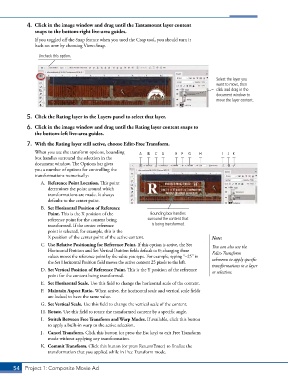
4.  Click in the image window and drag until the Tantamount layer content
               snaps to the bottom-right live-area guides.

               If you toggled off the Snap feature when you used the Crop tool, you should turn it
               back on now by choosing View>Snap.

                 Uncheck this option.


                                                                                          Select the layer you
                                                                                          want to move, then
                                                                                          click and drag in the
                                                                                          document window to
                                                                                          move the layer content.


            5.  Click the Rating layer in the Layers panel to select that layer.

            6.  Click in the image window and drag until the Rating layer content snaps to
               the bottom-left live-area guides.
            7.  With the Rating layer still active, choose Edit>Free Transform.
               When you use the transform options, bounding   A  B  C  D  E F  G   H         I  J K
               box handles surround the selection in the
               document window. The Options bar gives
               you a number of options for controlling the
               transformations numerically:
                  A.  Reference Point Location. This point
                     determines the point around which
                     transformations are made. It always
                     defaults to the center point.
                  B.  Set Horizontal Position of Reference
                     Point. This is the X position of the      Bounding box handles
                     reference point for the content being    surround the content that
                     transformed. If the center reference       is being transformed.
                     point is selected, for example, this is the
                     X position of the center point of the active content.              Note:
                  C.  Use Relative Positioning for Reference Point. If this option is active, the Set   You can also use the
                     Horizontal Position and Set Vertical Position fields default to 0; changing these   Edit>Transform
                     values moves the reference point by the value you type. For example, typing “–25” in   submenu to apply specific
                     the Set Horizontal Posi tion field moves the active content 25 pixels to the left.
                                                                                        transformations to a layer
                  D.  Set Vertical Position of Reference Point. This is the Y position of the reference   or selection.
                     point for the content being transformed.
                  E.  Set Horizontal Scale. Use this field to change the horizontal scale of the content.
                  F.  Maintain Aspect Ratio. When active, the horizontal scale and vertical scale fields
                     are locked to have the same value.
                  G.  Set Vertical Scale. Use this field to change the vertical scale of the content.
                  H. Rotate. Use this field to rotate the transformed content by a specific angle.
                  I.  Switch Between Free Transform and Warp Modes. If available, click this button
                     to apply a built-in warp to the active selection.
                  J.  Cancel Transform. Click this button (or press the Esc key) to exit Free Transform
                     mode without applying any transformation.
                  K.  Commit Transform. Click this button (or press Return/Enter) to finalize the
                     transformation that you applied while in Free Transform mode.


       54 Project 1: Composite Movie Ad

