


Page 43 - CC2018_WD_Look_Inside
P. 43
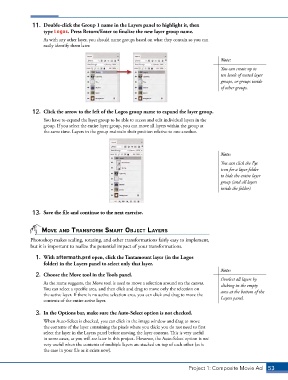
11.  Double-click the Group 1 name in the Layers panel to highlight it, then
                   type Logos. Press Return/Enter to finalize the new layer group name.

                   As with any other layer, you should name groups based on what they contain so you can
                   easily identify them later.


                                                                                            Note:
                                                                                            You can create up to
                                                                                            ten levels of nested layer
                                                                                            groups, or groups inside
                                                                                            of other groups.


               12.  Click the arrow to the left of the Logos group name to expand the layer group.
                   You have to expand the layer group to be able to access and edit individual layers in the
                   group. If you select the entire layer group, you can move all layers within the group at
                   the same time. Layers in the group maintain their position relative to one another.


                                                                                            Note:
                                                                                            You can click the Eye
                                                                                            icon for a layer folder
                                                                                            to hide the entire layer
                                                                                            group (and all layers
                                                                                            inside the folder).


               13.  Save the file and continue to the next exercise.


                  move And trAnsform smArt objeCt lAyers
              Photoshop makes scaling, rotating, and other transformations fairly easy to implement,
              but it is important to realize the potential impact of your transformations.

                1.  With aftermath.psd open, click the Tantamount layer (in the Logos
                   folder) in the Layers panel to select only that layer.
                                                                                            Note:
                2.  Choose the Move tool in the Tools panel.
                                                                                            Deselect all layers by
                   As the name suggests, the Move tool is used to move a selection around on the canvas.   clicking in the empty
                   You can select a specific area, and then click and drag to move only the selection on   area at the bottom of the
                   the active layer. If there is no active selection area, you can click and drag to move the
                   contents of the entire active layer.                                     Layers panel.

                3.  In the Options bar, make sure the Auto-Select option is not checked.
                   When Auto-Select is checked, you can click in the image window and drag to move
                   the contents of the layer containing the pixels where you click; you do not need to first
                   select the layer in the Layers panel before moving the layer content. This is very useful
                   in some cases, as you will see later in this project. However, the Auto-Select option is not
                   very useful when the contents of multiple layers are stacked on top of each other (as is
                   the case in your file as it exists now).


                                                                               Project 1: Composite Movie Ad    53

