


Page 58 - Adobe Photoshop and Dreamviewer 2021
P. 58
Select a Color Range and Create a Layer Mask
         Many images have both hard and soft edges, and/or very fine detail that needs to be
         isolated from its background (think of a model’s blowing hair overlapping the title
         on the cover of a magazine). In this type of image, more sophisticated selection tools
         can be used to create a very detailed selection based on the color in the image.
             Rather than simply deleting pixels, as you did for the lightning image, another
         option for isolating an object with a path is to create a layer mask that hides
         unwanted pixels. Areas outside the mask are hidden, but not deleted, so you can later
         edit the mask to change the visible part of the image.

           1.  With aftermath.psd open, hide all but the Skyline layer. Click the
               Skyline layer to make it active.

           2.  Choose the Magic Wand tool (under the Object Selection tool). In the
               Options bar, make sure the New Selection button is active and set the
               Tolerance field to 32.
               The Magic Wand tool is an easy way to select large areas of solid color. The first
               four options in the Options bar are the same as those for the Marquee tools (New
               Selection, Add to Selection, Subtract from Selection, and Intersect with Selection).
               Tolerance is the degree of variation between the color you click and the colors
               Photoshop will select. Higher tolerance values select a larger range based on the color
               you click. If you’re trying to select a very mottled background, for example, you
               should increase the tolerance. Be careful, however, because increasing the tolerance
               might select too large a range of colors if parts of the foreground object fall within the
               tolerance range.
                                                                                        Note:
               The Anti-alias check box, selected by default, allows edges to blend more smoothly
               into the background, preventing a jagged, stair-stepped appearance.      Anti-aliasing is the
                                                                                        process of blending
               When Contiguous is selected, the Magic Wand tool only selects adjacent areas of the   shades of pixels to create
               color. Unchecking this option allows you to select all pixels within the color tolerance,   the illusion of sharp
               even if some are noncontiguous (for example, inside the shape of the letter Q).  lines in a raster image.

               By default, selections relate to the active layer only. You can check Sample All Layers
               to make a selection of all layers in the file.

               The Refine Edge button opens a dialog box where you can use a number of tools to
               fine-tune the selection edge.

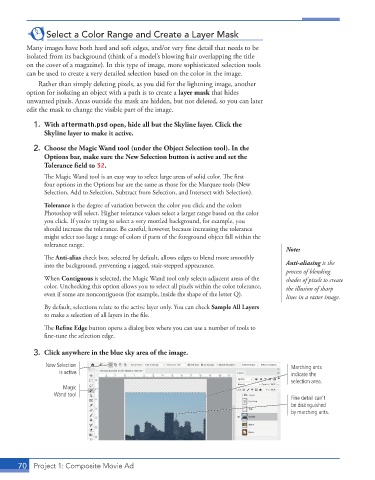
           3.  Click anywhere in the blue sky area of the image.

               New Selection                                                              Marching ants
                   is active.                                                             indicate the
                                                                                          selection area.
                    Magic
                  Wand tool
                                                                                          Fine detail can’t
                                                                                          be distinguished
                                                                                          by marching ants.


       70  Project 1: Composite Movie Ad

