


Page 56 - Adobe Photoshop and Dreamviewer 2021
P. 56
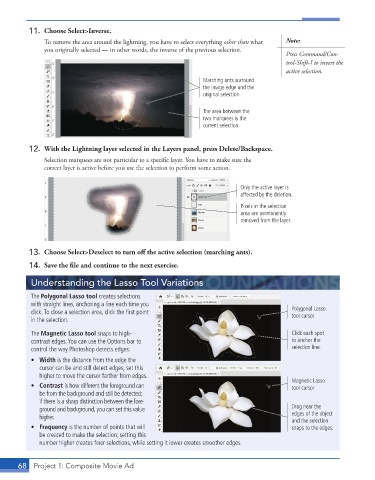
11.  Choose Select>Inverse.
               To remove the area around the lightning, you have to select everything other than what   Note:
               you originally selected — in other words, the inverse of the previous selection.
                                                                                        Press Command/Con-
                                                                                        trol-Shift-I to invert the
                                                                                        active selection.
                                                               Marching ants surround
                                                               the image edge and the
                                                               original selection.

                                                               The area between the
                                                               two marquees is the
                                                               current selection.


          12.  With the Lightning layer selected in the Layers panel, press Delete/Backspace.
               Selection marquees are not particular to a specific layer. You have to make sure the

               correct layer is active before you use the selection to perform some action.

                                                                          Only the active layer is
                                                                          affected by the deletion.

                                                                          Pixels in the selection
                                                                          area are permanently
                                                                          removed from the layer.


          13.  Choose Select>Deselect to turn off  the active selection (marching ants).

          14.  Save the fi le and continue to the next exercise.

          Understanding the Lasso Tool Variations

          The Polygonal Lasso tool creates selections
          with straight lines, anchoring a line each time you
          click. To close a selection area, click the fi rst point                         Polygonal Lasso
                                                                                          tool cursor
          in the selection.
          The Magnetic Lasso tool snaps to high-                                          Click each spot
          contrast edges. You can use the Options bar to                                  to anchor the
          control the way Photoshop detects edges:                                        selection line.
          •  Width is the distance from the edge the
             cursor can be and still detect edges; set this
             higher to move the cursor farther from edges.
                                                                                          Magnetic Lasso
          •  Contrast is how different the foreground can                                 tool cursor
             be from the background and still be detected;
             if there is a sharp distinction between the fore-
             ground and background, you can set this value                                Drag near the
             higher.                                                                      edges of the object
                                                                                          and the selection
          •  Frequency is the number of points that will                                  snaps to the edges.
             be created to make the selection; setting this
             number higher creates fi ner selections, while setting it lower creates smoother edges.


       68  Project 1: Composite Movie Ad

