


Page 51 - Adobe Photoshop and Dreamviewer 2021
P. 51
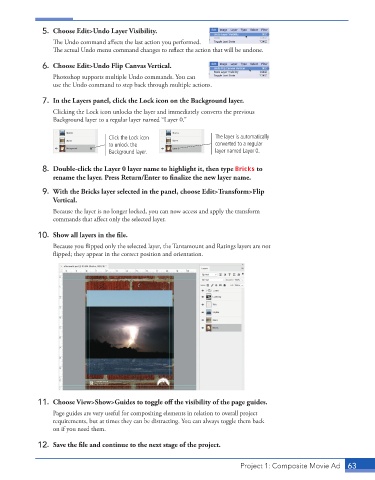
5.  Choose Edit>Undo Layer Visibility.
                 The Undo command affects the last action you performed.
                 The actual Undo menu command changes to reflect the action that will be undone.

              6.  Choose Edit>Undo Flip Canvas Vertical.
                 Photoshop supports multiple Undo commands. You can
                 use the Undo command to step back through multiple actions.

              7.  In the Layers panel, click the Lock icon on the Background layer.
                 Clicking the Lock icon unlocks the layer and immediately converts the previous
                 Background layer to a regular layer named “Layer 0.”


                                  Click the Lock icon              The layer is automatically
                                  to unlock the                    converted to a regular
                                  Background layer.                layer named Layer 0.

              8.  Double-click the Layer 0 layer name to highlight it, then type Bricks to
                 rename the layer. Press Return/Enter to finalize the new layer name.

              9.  With the Bricks layer selected in the panel, choose Edit>Transform>Flip
                 Vertical.

                 Because the layer is no longer locked, you can now access and apply the transform
                 commands that affect only the selected layer.

             10.  Show all layers in the file.
                 Because you flipped only the selected layer, the Tantamount and Ratings layers are not
                 flipped; they appear in the correct position and orientation.


             11.  Choose View>Show>Guides to toggle off the visibility of the page guides.
                 Page guides are very useful for compositing elements in relation to overall project
                 requirements, but at times they can be distracting. You can always toggle them back
                 on if you need them.

             12.  Save the file and continue to the next stage of the project.


                                                                          Project 1: Composite Movie Ad    63

