


Page 33 - Adobe Photoshop and Dreamviewer 2021
P. 33
Copy and Paste Selected Pixels
            In addition to dragging an entire layer with the Move tool, you can also use a variety
            of selection tools to choose only certain areas of a layer that will be copied. In this
            exercise, you use the most basic selection tool — the Rectangular Marquee tool.
             1. With aftermath.psd open, choose View>Fit on Screen to show the entire
                 image centered in the document window.

             2.  Open the fi le Skyline.jpg from your WIP>Movie folder.
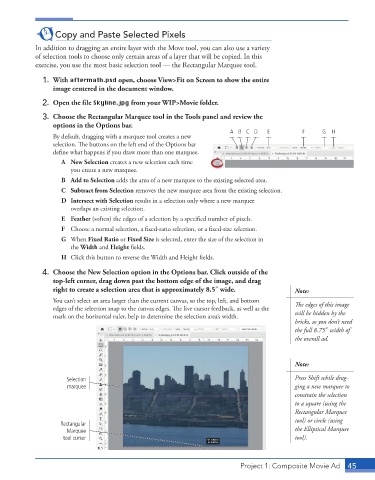
             3.  Choose the Rectangular Marquee tool in the Tools panel and review the
                 options in the Options bar.
                                                                       A B C D     E         F     G  H
                 By default, dragging with a marquee tool creates a new

                 selection. The buttons on the left end of the Options bar

                 define what happens if you draw more than one marquee.
                    A New Selection creates a new selection each time
                       you create a new marquee.
                    B Add to Selection adds the area of a new marquee to the existing selected area.
                    C Subtract from Selection removes the new marquee area from the existing selection.
                    D Intersect with Selection results in a selection only where a new marquee
                       overlaps an existing selection.

                    E Feather (soften) the edges of a selection by a specified number of pixels.
                    F  Choose a normal selection, a fixed-ratio selection, or a fixed-size selection.


                    G When Fixed Ratio or Fixed Size is selected, enter the size of the selection in

                       the Width and Height fields.

                    H  Click this button to reverse the Width and Height fields.
             4.  Choose the New Selection option in the Options bar. Click outside of the
                 top-left corner, drag down past the bottom edge of the image, and drag
                 right to create a selection area that is approximately 8.5″ wide.         Note:
                 You can’t select an area larger than the current canvas, so the top, left, and bottom   The edges of this image


                 edges of the selection snap to the canvas edges. The live cursor feedback, as well as the
                 mark on the horizontal ruler, help to determine the selection area’s width.   will be hidden by the
                                                                                           bricks, so you don’t need
                                                                                           the full 8.75″ width of
                                                                                           the overall ad.


                                                                                           Note:

                     Selection                                                             Press Shift while drag-
                      marquee                                                              ging a new marquee to
                                                                                           constrain the selection
                                                                                           to a square (using the
                                                                                           Rectangular Marquee
                                                                                           tool) or circle (using
                   Rectangular
                     Marquee                                                               the Elliptical Marquee
                    tool cursor                                                            tool).


                                                                          Project 1: Composite Movie Ad    45

