


Page 28 - Adobe Photoshop and Dreamviewer 2021
P. 28
The Crop Tools In Depth (continued)

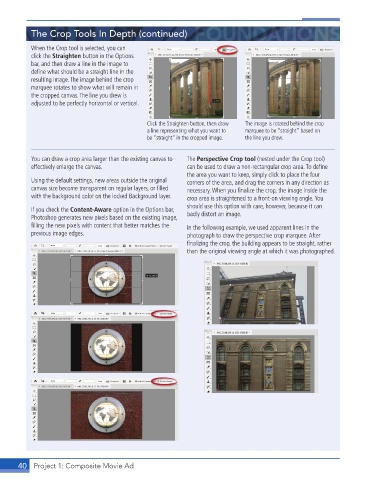
           When the Crop tool is selected, you can
           click the Straighten button in the Options
           bar, and then draw a line in the image to
           defi ne what should be a straight line in the
           resulting image. The image behind the crop
           marquee rotates to show what will remain in
           the cropped canvas. The line you drew is
           adjusted to be perfectly horizontal or vertical.


                                              Click the Straighten button, then draw   The image is rotated behind the crop
                                              a line representing what you want to   marquee to be “straight” based on
                                              be “straight” in the cropped image.  the line you drew.


           You can draw a crop area larger than the existing canvas to   The Perspective Crop tool (nested under the Crop tool)
           effectively enlarge the canvas.                can be used to draw a non-rectangular crop area. To defi ne
                                                          the area you want to keep, simply click to place the four
           Using the default settings, new areas outside the original   corners of the area, and drag the corners in any direction as
           canvas size become transparent on regular layers, or fi lled   necessary. When you fi nalize the crop, the image inside the
           with the background color on the locked Background layer.  crop area is straightened to a front-on viewing angle. You
                                                          should use this option with care, however, because it can
           If you check the Content-Aware option in the Options bar,   badly distort an image.
           Photoshop generates new pixels based on the existing image,
           fi lling the new pixels with content that better matches the   In the following example, we used apparent lines in the
           previous image edges.                          photograph to draw the perspective crop marquee. After
                                                          fi nalizing the crop, the building appears to be straight, rather
                                                          than the original viewing angle at which it was photographed.


       40  Project 1: Composite Movie Ad

