


Page 29 - Adobe Photoshop and Dreamviewer 2021
P. 29
Drag a File to Composite Images
            Compositing multiple images in Photoshop is a fairly simple process — or at least,
            it starts out that way. There are, of course, a number of technical and aesthetic issues
            that you must resolve when you combine multiple images in a single design.     Note:
                                                                                           When you created the
              1.  With aftermath.psd open, open the file Storm.jpg from your               background file for
                 WIP>Movie folder.                                                         this project, you cre-
                                                                                           ated a raster image that
              2.  With Storm.jpg the active file in the document window, open the Image    contains pixels. Digital
                 Size dialog box (Image>Image Size).
                                                                                           photographs and scans
                 Remember that you                                                         are also pixel-based,
                 can press Command-                                                        which is why you use
                 Option-I/Control-Alt-I to                                                 Photoshop to edit and
                 open the dialog box.
                                                                                           manipulate those types
                 This image is only 180                                                    of files.
                 ppi, but it has a physical
                 size much larger than the
                 defined ad size. As with
                 the original bricks image,
                 the principle of effective
                 resolution might make this image usable in the composite ad.

              3.  Click Cancel to close the Image Size dialog box.

              4.  Open the Window>Arrange menu and choose 2-up Vertical to show both
                 open files at once.
                 As you saw in the Interface chapter, these options are useful for arranging and viewing
                 multiple open files within your workspace.

              5.  Choose the Move tool in the Tools panel.

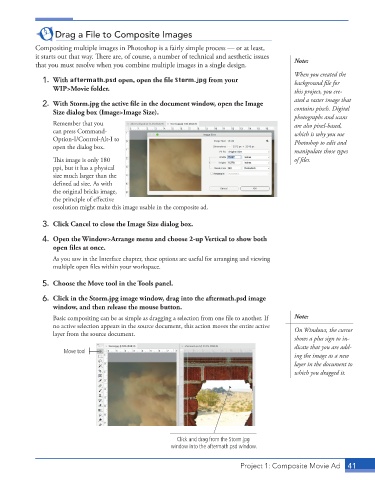
              6.  Click in the Storm.jpg image window, drag into the aftermath.psd image
                 window, and then release the mouse button.
                 Basic compositing can be as simple as dragging a selection from one file to another. If   Note:
                 no active selection appears in the source document, this action moves the entire active   On Windows, the cursor
                 layer from the source document.
                                                                                           shows a plus sign to in-
                                                                                           dicate that you are add-
                     Move tool
                                                                                           ing the image as a new
                                                                                           layer in the document to
                                                                                           which you dragged it.


                                                       Click and drag from the Storm.jpg
                                                     window into the aftermath.psd window.


                                                                          Project 1: Composite Movie Ad    41

